Forum Discussion
Hello everyone,
I'm sorry to hear that some of you are still facing this issue. In most cases, this issue is related to local network settings or your internet service provider (ISP). To resolve the issue, you can follow the troubleshooting steps below:
Standard troubleshooting steps for the EA app (please click on "Spoiler" to reveal the info):
Check for other applications that may be limiting EA app or Game performance,An EA app recovery (Clear Cache),Repair or verify your game files (based on which client you are launching from),EA app - Repair (My Collection > Tile Dots > Repair)EGS - Repair (Library > Tile dots > Manage > Verify)Steam - Verify in your library.
Connection & Administrator troubleshooting steps for Windows (please click on "Spoiler" to reveal the info):
Connection and Advance Connection Guides,Untick the options in LAN Settings (make sure nothing is checked under Proxy Server),Change DNS settings (You can use the public Google DNS primary: 8.8.8.8, secondary: 8.8.4.4),Change TCP/IP Settings,Set up a Static IP,Check date/time is correct in Windows,Try a new Windows User Account,Reset Windows Host File,Flush DNS:Click “Start” and type the word “Command” in the Start search field. Finally, right-click the command prompt icon and select the option to “Run as Administrator”,In the open prompt, type “ipconfig /flushdns” (without the quotes), and press the Enter button on your keyboard,You should receive a message of your success as confirmation when the cache is cleared.
Check date/time is correct in Windows,Change UAC Controls within Windows,Try a new Windows User Account,,Reset Windows Host File,,Change UAC Controls within Windows,Run the System File Checker tool and check for Windows and GPU updates,If you are playing on a laptop, default your game to the high-performance GPU,Guide for Troubleshooting Graphics issues,Install/Repair your VC++ files for the game (Microsoft VC++ Link),Download and update DirectX,Put your device in a Clean Boot and launch the game,Try the Game in different Compatibility settings,Remove any over-clocking or undervolt settings or software and check if the issue persists.
Thank you.
- Windows version and build number - Windows 11 Build 22621.2070
- EA app version - 12, 251, 1, 5504
- The region you're from - United States
- Are you using an internal or external drive to play your games? - Internal
- Are you using an HDD or SSD? SSD
- Date this issue started (is it still happening?)? Aug 6, 2023
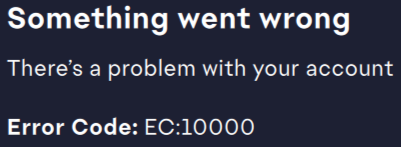
- Other error(s)? Just this EC:1000 error preventing me from using the app to access my games
I've also done a clean boot, disabled my antivirus/malware/vpns, and uninstalled and re-installed the app, nothing's worked.
- 2 years agoClose app open task manager and end task EA background Service
Type "Run" in the start search screen and open it.
Type "%loacalappdata%" on the screen that opens and press enter.
In the new window that opens, find and delete the "EADesktop", "EALaunchHelper" and "Electronic Arts" folders.
This worked for me. - 2 years ago
Having the same issue. This is why people are leaving to Steam in droves. EA is nothing nut one issue after another. We all know everyone wants to spend hours of their tree time trying to solve the issues they pay EA to solve.