Forum Discussion
3 Replies
 casperlan3 months agoRising Newcomer
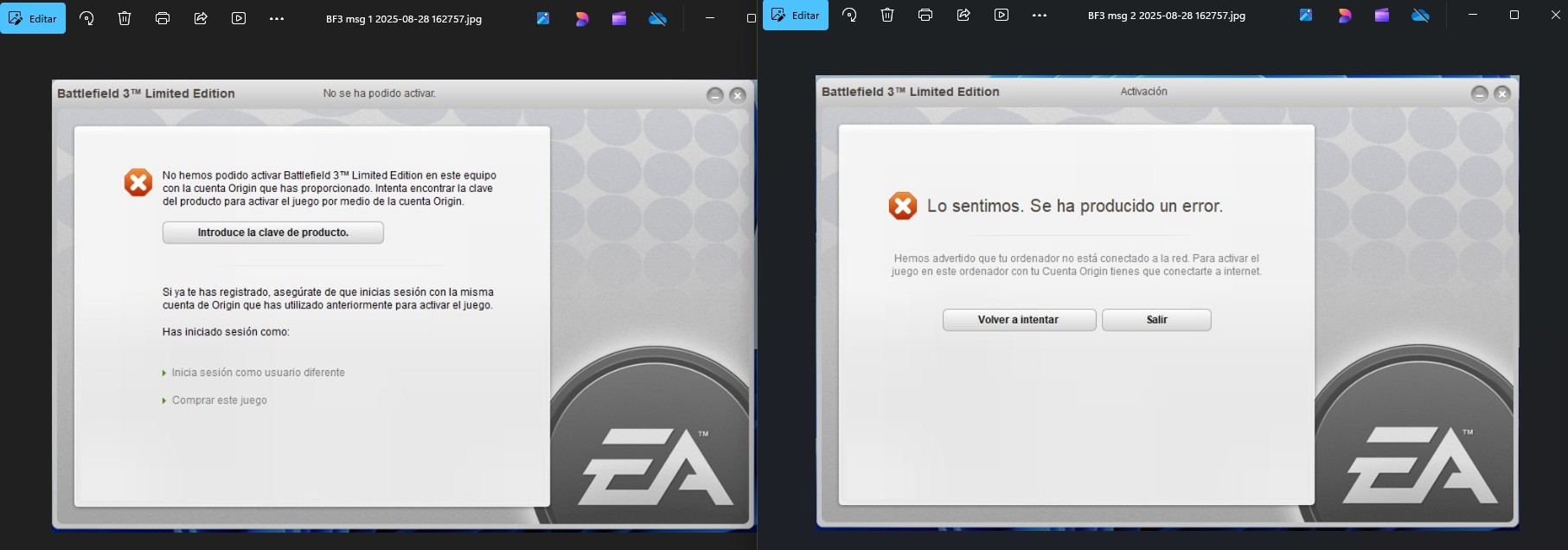
Hola amigo! yo tambien estoy sufriendo por esto. Encontraste una solucion?
 jucadan5333 months agoSeasoned Newcomer
I solved.
May be other people found useful any of these intructions that I found related to this issue for solving it:
0. Open Windows File Explorer and copy/paste this 'url' into the address bar: C:\ProgramData\Electronic Arts\EA Services. Move the entire License folder to Desktop and then test the game.
1. Delete file "71067.dlf" in folder C:\ProgramData\Electronic Arts\EA Services\License
- Navigate to the directory C:\ProgramData\Origin and delete all the files and folders contained within or if you find any EA folder there delete that also.
- Similarly, go to C:\ProgramData\Electronic Arts and delete all the contents located there.
- Afterward, restart your computer.
- When you reopen EA app, it may display an "updating" message for any games you have downloaded. Please be patient and allow the update process to complete
2. Delete residual cache. Clear your app data and cache by deleting the following folders:
- Open the Run dialog by pressing the Windows key + R.
- Type %programdata% and press Enter. Delete any "Electronic Arts," "EA Desktop," or "Origin" folders.
- Open Run again, type %appdata% and press Enter. Delete any "Electronic Arts," "EA Desktop," or "Origin" folders.
- Open Run again, type %localappdata% and press Enter. Delete any "Electronic Arts" or "Origin" folders.
3. https://forums.ea.com/discussions/battlefield-franchise-discussion-en/cannot-verify-the-gameaktivierung-nicht-m%C3%B6glich/6299302#M140356:
- Download and install the VU client launcher from VeniceUnleashedLauncher (Download it).
- How to run VU client icon on desktop?
- Right-click the icon → Select Properties
- Go to the Shortcut tab → Find the Target field
- At the end of the target path (after VU.exe), hit space and paste:
-activate -o_mail ************** -o_pass *************
- Replace ******** with your full Origin/EA email ID and password.
Example:
\VeniceUnleashed\VeniceUnleashed\vu.exe -activate -o_mail [edit: email address removed] -o_pass ++++++
- Click Apply and OK
- Run the VU launcher — there will be no pop-ups. You can run it 2 or 3 times; that’s OK.
- Click on Windows search bar and type “Activate BF3” — wait for a while and do nothing.
4. https://help.ea.com/en/articles/platforms/troubleshoot-vc-dll-errors-pc
Check if reinstalling security updates fixes your issue.
-.Go to your game's installation path, D:\Program Files\EA Games\Battlefield 3.
For example, Battlefield 4's installation path by default is C:\Program Files\Electronic Arts\EA Desktop\Battlefield 4.
-.Open the _Installer folder.
-.Open the vc folder.
If there’s only one folder in there, open it and continue to step 4.
If there are multiple folders, open the older one first. The folders are organized by year. For example, if you see a vc2013 and a vc2015 folder, open vc2013 first. Follow the next two steps for the older folder, then repeat those two steps for the newer one.
-.Open the redist folder.
-.In redist, find both the x86 and x64 versions of vcredist.exe. Run each to install.
After you repair and install both versions of vcredist.exe, your game should launch properly without triggering any errors.
- troyller13 months agoRising Newcomer
moving the licence folder works for me thanks
Featured Places