Forum Discussion

Carbonic
10 years agoHero+
I doubt you have tried "every solution" as the problem would be gone now, but if you listed the things you already have tried it will be easier for us to help you 🙂
My first guess would be that you need to reinstall the x64 bit version of the visual studio c++ redistribution found in the _installer folder.
- ApprovedAnonymous10 years ago
I reinstalled the game.
I repaired the game.
I installed the latest NVIDIA driver.
I installed the latest Punkbuster.
I installed the all the vcredists
I installed the latest DirectX
I tried running bf4.exe, bf4_x86.exe, bf4webhelper.exe, bf4x86webhelper.exe in Admin mode.
I disabled Origin in game.
I set BF4 to run in x64 in the game settings.
I set the firewall to not scan BF4.
And probably something else, I don't even remember.
Oh and I don't know if it's relevant, but the 32 bit version launches with no problems. And yes I do have a 64 bit OS.
- Carbonic10 years agoHero+
Also how doesn't it launch? Nothing happens? Error message? Anything out of the ordinary?
Anyways, it could be because of corrupt files. I would probably try scanning harddrive for errors and then delete the Origin cache.
Check Hard Drive For Errors And Corrupted Files
All files can become damaged. This is just the nature of hard drives. Do this for all hard drives that has Windows, Punkbuster and the game installed.
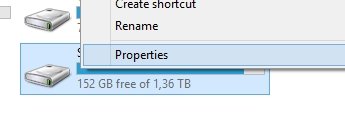
- Go to "This PC" in Windows and right click the hard drive and click "properties"
- Go to "Tools" and and press "Check"
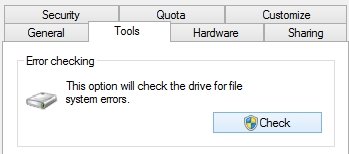
- Click "Scan Drive" and let it scan for errors.
- If it finds errors let the program fix them
(If there are errors it could mean nothing, but it can also suggest that it might be time to format your computer and/or replace the hard drive) - Reboot your computer
- Run the scan again
- Keep repeating step 3-5 until no errors are found.
Delete Origin Cache
- Make sure you see can see hidden files
- log out in your Origin
- open your "local hard drive (C):" then click on "ProgramData" folder and inside that folder, delete the folder called "Origin".
- again, open your "local hard drive (C):", click on the "Users" folder, then inside that folder you'll see your "Computer name/Username" folder, click on it. Click on "Appdata" folder and click on "Local" and inside that folder, please delete the "Origin" folder.
- go back to your "Computer name/Username" folder, then inside it click on the "Appdata" folder again and click on "Roaming" folder. Inside that folder, please delete the "Origin" folder.
- log back into Origin and repair the game
- Play
Lastly, you might want to try a clean boot if the above doesn't work:
help.ea.com/en/article/how-to-clean-boot-your-pc/
- ApprovedAnonymous10 years ago
Now it works, I installed Windows Service Pack 1 and it launches, but It takes a loong time loading, stutters even with 130fps, and most of the times gets stuck loading the map. I was thinking of upgrading to Win10, would that solve the problem?
Oh and yeah I already checked the HD, no errors.
- Go to "This PC" in Windows and right click the hard drive and click "properties"
Featured Places