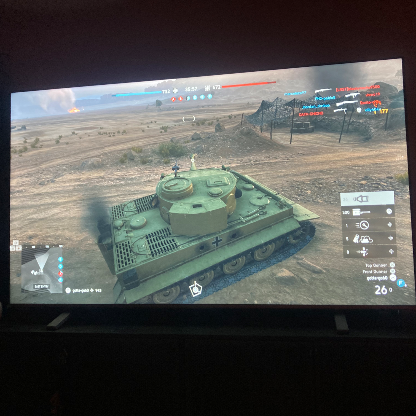
Weird Technical Issue
Hi all, so I recently got a new gaming computer, and I’ve been having issues with this computer with Battlefield V and a few other games; however, my second, mid-tier gaming laptop does not have the issue. I’ve tried essentially everything the Internet and my tech friends have asked me to try, and I’m out of ideas, so I figured I’d see if I can pick anyone’s brain here. Notably this isn’t only happening with Battlefield V, but since Battlefield V is one of the affected games, I thought I’d post here.
The issue is the following – for certain games, I’m getting unplayable frame rates (<5 FPS, I can literally count the number of frames per second by myself). It does not appear to affect every game, and for affected games, if I activate the most recent Direct X processing (e.g., DX12 for BFV), the issue more or less stops. However, when I activate DX12 for BFV, only in the campaign does frame rate returns to normal, multiplayer modes (e.g., practice range or conquest) still plays at <5 FPS). The only setting I’ve fiddled with that made any noticeable difference was disabling pre-rendering, but that only increased FPS from like, 2 FPS to 5 FPS.
Again, notably, only one of my two computers are affected. Common specs between the two:
- Windows 11 (however, unaffected uses Windows 11 Education and affected uses Windows 11 Home)
- Drivers are up-to-date
- BFV boots off of a USB SSD that goes through at least a USB 3.0 port (potentially higher, unsure)
Unaffected computer specs:
- Laptop
- Intel i5 9300H
- 12 gigs RAM
- NVIDIA GeForce GTX 1050, 3gb
- 512 GB SSD
Affected computer specs
- Desktop
- Intel i7 10700F
- 16 gigs RAM
- NVIDIA GeForce GTX 1660 Super 6gb
- 256 GB SSD + 1TB HDD
If anyone has any ideas let me know. If BFV is entirely unplayable then that would at least help me diagnose the situation, but when the campaign works fine with the desktop using DX12 and multiplayer does not, I have no idea how to fix this! I guess this teaches me a good lesson not to upgrade to Windows 11, but at the same time, when it works fine on the Windows 11 laptop then I truly have no idea.
Since I dont know what you have already tried ill take a few shots in the dark.
1. Installing Motherboard drivers and BIOS, not the drivers you get from windows update I mean the REAL drivers you get from the boards manufacturer.
There will be many drivers to update but the main one is the chipset driver.
2. Find the command prompt and run it as admin. (im not familar with Win 11 layout)
Type:
sfc /scannow
If the scan was able to repair something restart your PC and test the game.
If the scan failed let me know.
If the scan was unable to find an issue then your OS is fine.