Forum Discussion


6 years ago
Hello there @warriorsp ,
Here are some things to try:
Fix 1: Turn off in-game overlay
1) Open your Origin.
2) Click the Origin menu button and click Application settings.
3) Click More and select ORIGIN IN-GAME, then toggle off Enable Origin In Game.
4) Try launching Battlefield V again to test the issue.
Fix 2: Update your device drivers
Battlefield V is a very demanding game, so you need to have the latest drivers installed, especially your graphics driver. Manufacturers such as NVIDIA, AMD work closely with game developers to keep releasing new drivers to improve game performance and fix bugs.
Fix 3: Delete settings and repair your Battlefield V
Deleting the settings file will reset your graphics configuration to default, and then you can repair Battlefield V in Origin to see if this works for you.
1) Go to C:\Users\YOUR USERNAME HERE \Documents\Battlefield V\settings and delete everything in this folder.
2) Go to Origin and click My Game Library, then right click Battlefield V and click Repair.
3) Restart your PC when the repair is done.
4) Launch your Battlefield V again to see if the crashing issue still persists.
Fix 4: Stop Overclocking
Battlefield V is very sensitive to overclocking, so do NOT overclock your GPU and CPU. Overclocking may cause your Battlefield V crashing or freezing. In that case, we suggest resetting the processor or GPU to the manufacturer specifications.
Fix 5: Run Origin and BFV as admin
If run into a game crashing issue, you can always try running both your game launcher and game executable file as administrator. Your Battlefield 5 crashing issue can be caused by limited access to your game file.
To make sure you always have a full access to all the game files, you can run both your Origin and Battlefield V executable as admin permanently.
1) Go to C:/Program Files (x86)/Origin Games/Battlefield V, right click your Battlefield V executable file and select Properties.
2) Click the Compatibility tab and check the box next to Run this program as an administrator.
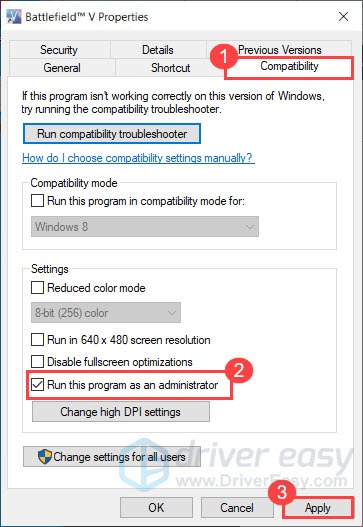
3) Run Origin as administrator as well.
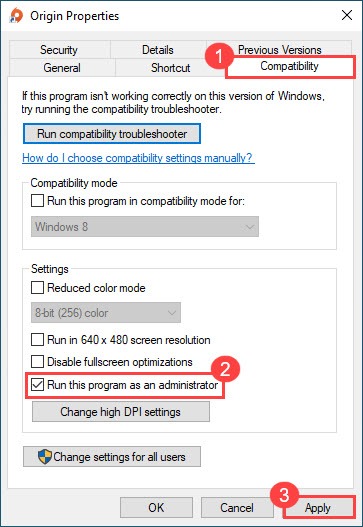
4) Try launching your game again to see if Battlefield V crashing issue still persists.
Fix 6: System File Checker
Your Battlefield V crashing issue can be caused by corrupt system files. Try running System File Checker to scan for any missing or corrupt files.
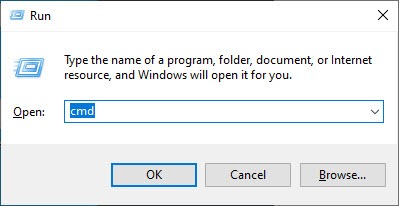
1) On your keyboard, press the Windows logo key and R at the same time to open the Run box. Type cmd and press Ctrl + Shift + Enter to run Command Prompt as admin.
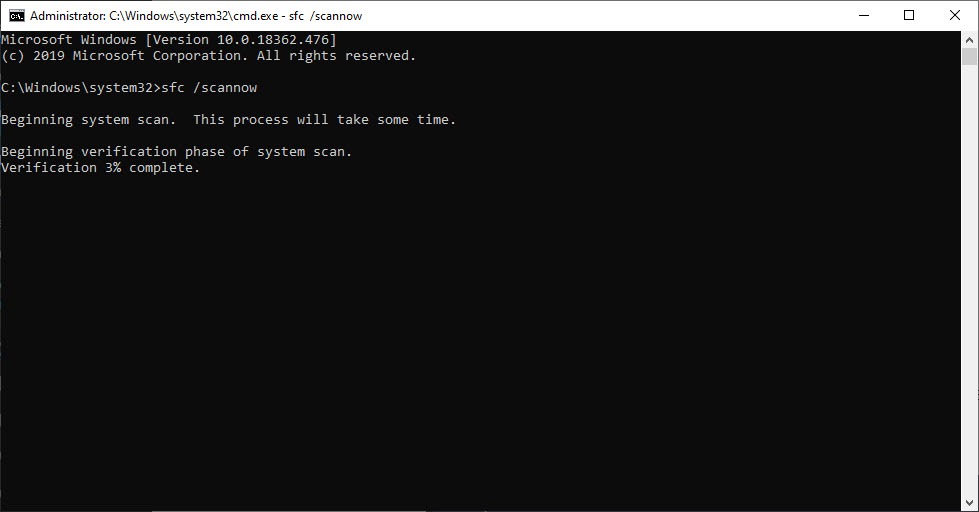
2) Type the command: sfc /scannow and hit Enter. Note that there’s a space between sfc and /.
sfc /scannow
3) Wait for the verification process to finish. This may take 3-5 minutes.
4) When the verification finishes, you may receive one of the following messages:
- Windows Resource Protection did not find any integrity violations.
It means you don’t have any missing or corrupted system files. You can go ahead with the next fix to solve your problem. - Windows Resource Protection found corrupt files and successfully repaired them
You can perform a restart and try to relaunch the game to see if Battlefield V not launching issue is gone.
I hope this helps!
Happy Gaming,
-Rare
Featured Places