Invalid license message upon launch?
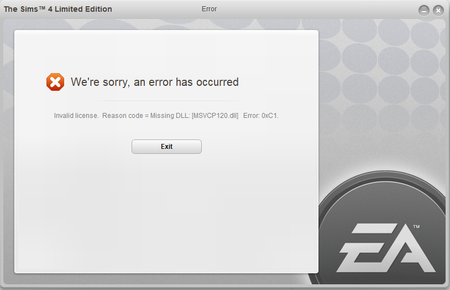

@Simologist Did you specifically uninstall and reinstall both the x86 and x64 versions of the 2013 VC++ runtimes? If not, or if you're not sure what you did, please try it now.
Hit Windows key-i, select Apps, scroll down to the Microsoft Visual C++ Redistributables, click on each of the versions from 2013, and select Uninstall. Don't touch the ones from any other year. Then download new versions directly from Microsoft:
https://www.microsoft.com/en-us/download/details.aspx?id=40784
You can skip the _arm version, which is for a different class of device, but definitely install both x86 and x64, even though you have a 64-bit OS.
If that doesn't help, please clear Origin's cache and repair Sims 4 again, just to be thorough.
https://help.ea.com/en-us/help/faq/clear-cache-to-fix-problems-with-your-games/
I've tried both methods, still no luck ☹️
@Simologist Try playing in a clean boot:
https://www.windowscentral.com/how-clean-boot-windows-10
After rebooting, please go through the Task Manager looking for any apps that don't need to be running, anything from RGB control software to MSI Afterburner or similar. Some of these programs don't respond to a clean boot, for whatever reason, but they need to be disabled as well.
If that doesn't help, please run a dxdiag and attach it to a post.
https://help.ea.com/en-us/help/pc/how-to-gather-dxdiag-information/
The clean boot was also an unsuccess
@Simologist Your dxdiag lists a few different kinds of system errors, which may or may not be related to Sims 4 but are worth addressing regardless. Please run a couple of basic checks of your Windows system files. Here's how:
Restart your computer, hit Windows key-i, select Update & Security, and click the box to check for updates.
Please also run the .NET repair tool, which you can download directly from Microsoft:
https://www.microsoft.com/en-us/download/details.aspx?id=30135
If you get an error at any point, please take a screenshot and attach it to a post. Hit Windows key-shift-S and drag your cursor over the section of screen you want to capture. Then open Paint and crtl-V to paste the image.