Forum Discussion

Miranda_ries's avatar
2 years ago

New packs, half mods disappeared, recovered them, game launch errors?

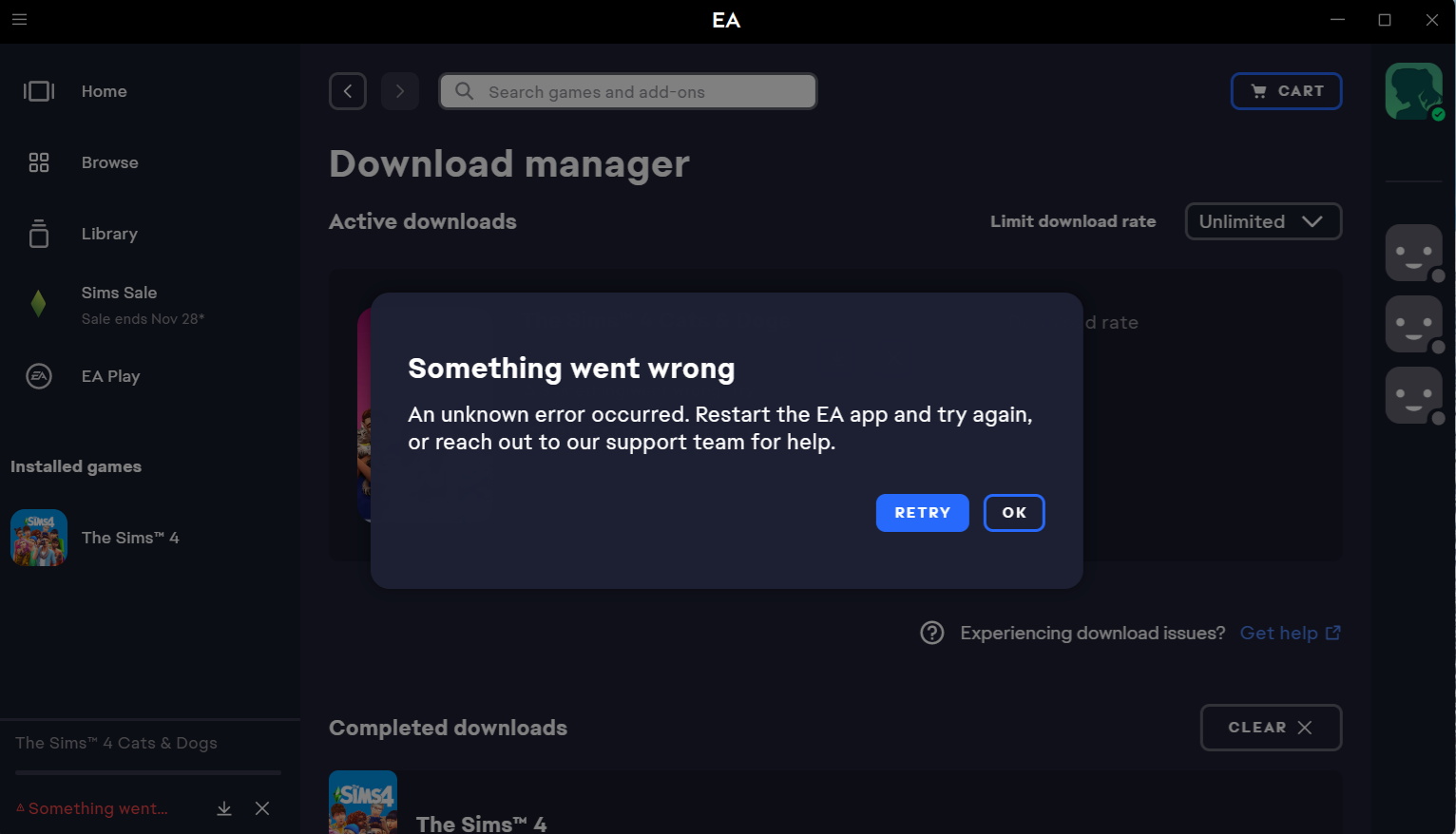
I recently downloaded some new packs for my game, but I ran into a major problem. About half of my mods disappeared, and even though I managed to recover them from my hard drive and placed them back, I started getting an error message stating that the game wasn't downloaded.

I tried troubleshooting by redownloading, but only the base game will download and when I attempt to download add-ons, I receive an error message. Moreover, I'm getting another error message when I try to open the base game. 

I tried clearing the EA cache several times, deleting and reinstalling EA, deleting any trace of any sim launcher or whatever it called I could find, changing the paths, etc. 

I'm at a loss on how to resolve these issues. Has anyone experienced something similar or knows a potential solution?? Any help would be greatly appreciated!

1 Reply

  • @Miranda_ries  Please remove all your mods and let me know whether you still get the initialization error.  You don't need to save your progress; the point is to find out whether the mods are causing the error or not.

    For the game itself, are all your packs currently installed, or are you still seeing an error when trying to download some of them?  If you can't download your packs, please uninstall Sims 4 and the EA App with Revo Uninstaller.  Start with Sims 4:

    • Put aside your Sims 4 folder in Documents\Electronic Arts and rename it to something that doesn't include the words "Sims 4."
    • Download Revo Uninstaller (the free version is fine) from here.
    • Launch Revo, select Sims 4 from the list, and click Uninstall.
    • Cancel the system restore point; you don't need it.
    • Once the game is uninstalled, select "Moderate" under "scanning modes," and click Scan.
    • Review the list, in case there's something you want to save; otherwise, click Select All, and then Delete.
    • Close Revo, and restart your computer.

    For the EA App:

    • Launch Revo, select the App, and click Uninstall.
    • Cancel the system restore point.
    • The EA App may open a window.  Click Uninstall, then in the Revo window, click Moderate under Scanning modes, and click Scan.
    • Revo will present a list of registry entries.  Click Select All, then Delete: you don't need or want to preserve these entries.
    • For the leftover files and folders, click Select All, review the list and deselect anything you'd like to keep (this is unlikely, but it's worth checking), click Delete, and you're done.
    • Close Revo, and restart your computer.

    Install the EA App, then create a new folder into which you'll install Sims 4.  The folder should be on the root level of the drive of your choice, for example C:\Games is fine, but not C:\Program Files\Games.