[READ FIRST] Saves, CC/Mods or Library items disappeared? iCloud issues
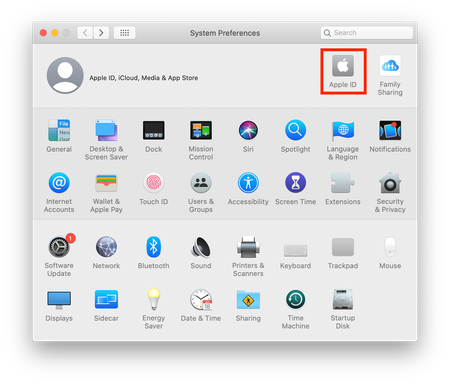
ISSUE Saves One minute your game is working fine. The next you go to play and the Load Game button has disappeared, there seems to be no way to play an existing save. CC/Mods Newly added CC/Mods do not show up in your game despite being properly installed (for help with installing 3rd party content see here) or CC randomly starts disappearing from your game. Library items Saving Lots, Rooms and Households to your in-game Library doesn't work CAUSE Most likely the internal storage on your Mac is too full and iCloud is pushing any newly added files to your Documents folder in the cloud. This can happen at anytime. You can check the storage level by clicking on the Apple in the top left corner of the menu bar then About This Mac, then the Storage tab. By default, the game stores your Saves, Mods, Tray (where your Library items are saved) and all your user game data in a folder called The Sims 4 in Documents > Electronic Arts. If there is no Sims 4 folder in this location the game will recreate a new one each time it is launched. If you have iCloud Drive enabled and set to store your Desktop & Documents folder in the cloud it may be moving your existing Sims 4 folder to the cloud, hence the need to create a new Sims 4 folder every time you launch the game. You can check the status of various files and folders, and what the little cloud icons mean, here. FIX Firstly, you MUST free up some space on your Mac otherwise doing this is pointless. Empty the Downloads folder, go through your data and see what you no longer need, empty the Bin. If you have large Photos, Music and TV libraries consider storing them on an external drive. Instructions here on how to do this for your Photos library, the principle is the same for the Music and TV apps. Open System Preferences and then your iCloud settings. What you click on can vary by macOS, check Apple's help page here if you can't immediately find where to look. This is where you can choose what gets stored in the cloud. We are only interested in two settings, iCloud Drive and Optimise Mac Storage Click on Options... in the iCloud Drive setting and make sure Desktop & Documents Folders is unchecked. Scroll down to the bottom of this Apple help page to understand what happens to your data when you turn off the setting. Back at the iCloud settings window, Uncheck Optimise Mac Storage below the list of apps using iCloud. This means that your Mac will stop pushing files to the cloud when the internal storage is getting full. For more info on this setting read this help page. Once you have successfully stopped iCloud from moving the contents of your Documents folder to the cloud you need to move the Sims 4 folder back into the default location - Macintosh HD > Users > [User] > Documents > Electronic Arts Apple explain here what the status of the little cloud icons mean. If you're feeling brave you could consider creating a symlink and storing your Sims 4 folder on an external drive. Or maybe change your EA App Games Library location to an external Drive.48KViews20likes754Comments
Mac: Save loads normally but Save & Save As always fail (Error 21)
Hi everyone, I'm hoping someone can help because I've spent the last couple of days troubleshooting this very thoroughly, with the help of ChatGPT, and I've reached the point where I think this needs someone with Sims-specific save expertise. I think this may be an unusual save corruption issue rather than a standard Error 21. I'm on macOS. The problem My main save (around 29 MB) loads perfectly and appears completely normal. I can: Play normally for as long as I want Switch between multiple households Travel between worlds Enter Build/Buy Enter CAS Interact with Sims normally Everything appears to function correctly The only thing that doesn't work is saving. Both Save and Save As immediately produce: Error Code 21 The game failed to save. Error Code: 21 The save has several years of gameplay (it's my primary save and contains almost all of my Sims history), so I'm trying everything possible before giving up on it. How this started My game had been working normally until a series of events happened around the same time. I had recently moved my Mac's data into iCloud as part of setting up my computer again. I then attempted to place a household from the Gallery. After placing it, I discovered that it required the Lovestruckexpansion pack, which I do not own. Shortly afterwards I began experiencing Error 801, along with obvious world corruption, including: missing lots floating apartment objects missing buildings broken world terrain At that point the save was clearly unusable. To recover, I restored my Sims 4 folder from a backup that I had stored on an external hard drive and copied my recovered saves into that installation. After doing that, the world corruption disappeared. The game now loads normally and appears completely healthy. However, ever since recovering the save, it has consistently produced Error 21 every time I attempt to save. What I've tested I've spent quite a bit of time trying to isolate the cause. I've confirmed the following: No mods or custom content installed. Brand new games save normally. The game itself appears to be functioning correctly. The problem only affects this save. Multiple households inside this save all fail to save. Build/Buy works. Create-a-Sim works. Travelling between worlds works. I restored older backup versions of the save (ver0/ver1/ver2), but they all produce the same Error 21. The biggest clue I've found The most interesting thing I've noticed is what happens when I choose Save As. The game immediately throws Error 21. It never creates a new save slot. No new Slot_0000000X.save file appears in the Saves folder. The timestamp on my existing save also never changes. There are no new LastException files created when the error occurs. Because nothing is ever written to disk, it almost seems as though the game is failing before it even begins the save process, rather than failing while writing the save. Things that do NOT appear to be the cause: As part of troubleshooting, I've ruled out quite a few common causes: Mods/CC Game installation General save permissions (new saves work normally) A single household (multiple households fail) The save simply being unreadable (it loads and plays perfectly) My question is has anyone seen Error 21 where: the save loads perfectly, the world appears completely normal, gameplay works indefinitely, but both Save and Save As fail immediately, and Save As never even creates a new save file? I'm particularly interested in whether anyone has seen this after recovering from Error 801 or after placing a Gallery household that required a pack that wasn't installed. I'm also happy to upload a copy of the save if anyone is willing to inspect it. Thank you! FYI, I have backups of the save, so I'm comfortable sharing a copy of it privately if that helps diagnose the problem.
Tray files not loading in My Library
Title: Tray files not loading in My Library (Mac) — files valid, Mods works, everything already tested Platform: Mac (macOS) Game install: EA app Mods/CC installed: Yes (no script mods involved in this issue) Problem: Downloaded Sims (households) and lots placed in my Tray folder do NOT appear in the in-game Gallery > My Library. My CC (clothing .package files) in the Mods folder works perfectly and shows up in Create a Sim. Only the Tray content fails to load. What I've already tried (please don't suggest these again): - Confirmed all files are directly in the Tray folder, no subfolders - Confirmed each entry has all its companion files (.trayitem, .householdbinary, .sgi, .bpi, .hhi) — same file count, nothing missing or unpaired - Enabled Custom Content and Mods + Script Mods in Options > Other - Set Gallery > My Library filters to All category, and enabled "include custom content" / show items requiring packs I don't own - Deleted localthumbcache.package - Fully restarted the Mac (not just the game) - Repaired the game through the EA app Mac/iCloud specifics (possibly relevant): - My Documents folder is synced to iCloud Drive. I have two "The Sims 4" folders: one in iCloud Drive > Documents > Electronic Arts, and one local at /Users/daniel/The Sims 4 - I confirmed which folder the game actually uses by renaming both and launching: the game recreated the folder in iCloud, so iCloud is the active one - I moved Mods and Tray into that active iCloud folder. Mods loads fine; Tray still does not - Files are downloaded locally (no iCloud "cloud" icon) Key clue: Sims 4 Tray Importer detects all my Sims correctly from the same active Tray folder — so the files themselves are valid and readable. The game just won't display them in the Library. Question: Given the files are valid (confirmed by Tray Importer) and in the correct active folder, why does the game fail to load Tray content while Mods loads fine? Is this related to the May 2026 update (1.124 / May 21 hotfix) that reportedly broke content? Any Mac/iCloud-specific fix?🛠️ Creating a symlink in macOS to store the Sims 4 folder on an external drive
➡️ This is not to be confused with installing the actual Sims 4 game on an external drive. The game installation location is determined in EA App and there is no need to use a symlink for this. As internal storage gets smaller we're forced to use cloud based solutions to store files and folders or resort to a trusty external drive. Cloud based only storage is not an option for the Sims 4 folder that contains all your saves, Mods, Library items and other user data because the game only looks in one place for your data: Macintosh HD > Users > [your user account] > Documents > Electronic Arts > The Sims 4 If there is no Sims 4 folder in that location the game will create a new one. There is no way around this default Sims 4 folder location unfortunately, it is hard coded into the game. Because of this the only option to store the Sims 4 folder on an external drive is to create a symbolic link, otherwise known as a symlink. Creating the symlink is relatively easy provided you understand the concept of what a symlink is and why you are creating it. You should also be familiar with Terminal on your Mac and the security and permission systems in place in whichever version of macOS you are running as these dictate the ability for the game to access the external drive and whether your Mac user account has permission to grant the necessary access. You should also make sure you are using a good quality, fast external drive. You get what you pay for and if you bought a cheap drive, with low quality cables, you will most likely struggle to get the symlink to work because it will be too slow. For help buying an external drive and what to look out for read this guide. I am not going to write step by step instructions here, the post will be far too long. Instead, you can read the detailed and comprehensive guide I wrote several years ago here https://bluebellflora.com/saving-your-sims-4-folder-to-an-external-drive/ If your symlink is not working it is down to user error. It really is that simple. macOS is a Unix based operating system and as such uses Unix commands which are all provided in the above linked guide. This thread is for consolidating all posts related to the Mac symlink process here at Answers HQ. If you're a Windows user read Crinrict's excellent guide here https://crinrict.com/blog/2020/02/moving-windows-documents-folder-to-external-drive-via-symbolic-link.html. What I have provided below are a few of the common issues people face as a result of not entering the commands correctly or having the correct permissions in place. Common issues reported and the solution: Always check your external drive has the correct name in Disk Utility: open Disk Utility (Applications > Utilities) change View to Show All Devices then click on the drive in the left sidebar the Mount Point shows the name of your drive. If there is a number added to the drive name it means the drive has not been properly ejected multiple times Close Disk Utility and eject the drive In Finder click on Go in the menu bar then Go To Folder. Enter /Volumes in the input field and hit return in the /Volumes location, trash the folder(s) that has the same name as the external drive Close Finder, plug the drive back in, open Disk Utility again to check the drive name in the Mount Point. If it matches try to create the symlink In addition to checking the external drive mount point above, the following may also be helpful: Terminal states my access/permission is denied check your Mac user account is an Administrator account and not a Standard account. check that Terminal has access to external drives, also known as Removable Volumes, and your Documents folder. I'm constantly getting "Unable to start... Cannot start because the below file appears to be corrupted" error message make sure the external drive is correctly formatted as either APFS or Mac OS Extended (Journaled). If it isn't, reverse the symlink, reformat the drive in Disk Utility and start again. check your Mods actually aren't corrupted by downloading a compatible version from the creator. I keep getting the error message "Unable to start... The Sims 4 is already running" make sure the external drive is correctly plugged in and mounted. check EA App has access to the external drive in System Settings > Privacy & Security. Give it Full Disk Access if necessary. disable iCloud Drive if the symlink folder in Documents is a white page instead of a folder with the little arrow the symlink has broken. Trash it and attempt to recreate the symlink. Check the Mount Point in Disk Utility shows your exact external drive name and doesn’t have a number added to the drive name. If it does this means your drive has not been properly ejected multiple times. To fix it: eject the drive in Finder click on Go in the menu bar then Go To Folder enter /Volumes in the text field and hit Enter/Return in the Finder window that appears you should see a folder, not a drive icon, with the same name as your external drive. Trash it. plug the drive back in, check the mount point in Disk Utility is the exact drive name with no appended numbers, then try to create the symlink again. if the mount point is still showing a number you have problems with your drive. Consider reformatting it, trying different connector cables, or getting a better drive. Terminal tells me No such file or directory did you copy and paste the command from the guide and correctly substitute the name of your external drive? If you didn't copy and paste you may have used the wrong letters in the command. Copy and paste from the guide. Does the folder you are trying to move or create a symlink to exist in the location you are stipulating in the command? Terminal tells me Directory not empty in Step 1 Is there already a folder on the external with the same name as the folder you're moving? i.e. have you already copied over the Electronic Arts folder? If there is already a folder with the same name as the folder you're moving, Terminal will return this result. Terminal tells me File already exists in Step 2 of the guide Did you correctly complete step 1 or is there still an Electronic Arts or Sims 4 folder in your Documents folder? If the folder is still there you have not correctly moved it in Step 1. If you have iCloud Drive enabled to store your Documents folder in the cloud and Optimise Storage enabled, it will cause issues with the symlink. I strongly advise to disable this iCloud feature otherwise you will have issues, especially if you use Mods. As a reminder, creating this symlink is aimed at people storing their Electronic Arts/Sims 4 folder locally. Using iCloud Drive stores your folder in the cloud and locally. For help with iCloud see this thread https://answers.ea.com/t5/Technical-Issues-Mac/READ-FIRST-Saves-CC-Mods-or-Library-items-disappeared/m-p/1024213331KViews3likes649Commentssaved household won't show up
I logged into sims yesterday, and it wasn't letting me click on any object or sim. I did some research and someone on an ea forum said to fix this glitch, I should move my electronic arts folder from finder to desktop. I did so, and when I started up sims again, everything was gone as if I had just started the game. My mods were gone as well, but what I really care about is my household. Both of my households are gone. I tried copying them into a new sims file, renaming it, and placing it back into finder, but my old saves are nowhere to be found.Lost All Saves / Video Card Issue
First issue that happened was after going into EA like normal to open sims 4 I got the message that the game was already running (which it did not seem like it was) and then got a pop up with something like “do you want sims 4 to access a folder on this computer” (I can’t remember the exact wording) and I accidentally clicked no. After that, when opening sims I get the message “UNRECOGNIZED VIDEO CARD Your video card is not recognized in our database. We have optimized your graphics settings for improved performance.” Along with this message none of my saved games show up and the main home screen opens prompting me to create a household as if I've never played before. After searching around online I tried what I thought was a simple fix to rename the sims folder “sims_old” and reopen the game and then copy the saves folder from “old” over to the new sims folder that is created. When I did this weirdly the only game that loaded was one from 2018. I have no mods installed and I checked my I cloud storage to set it to not save my game to the cloud. Compared to any actual gamer I am not great with computers and this is really the only game I play so I wanted to get advice before I mess things up any further. I’m so mad at myself because I’ve spent over a year on the current house / family I have and don’t want to lose everything. Let me know if there is any additional information that I can provide to try and fix this, any help is very appreciated! Edit: I also have now made sure to allow The Sims 4 permission to access the Documents folder, still having the same issue of only seeing the very old saved game === Graphics device info === Number: 0 Name (driver): Intel HD Graphics 615 Name (database): [Found: 0, Supported: 1] Vendor: Intel Chipset: Vendor: 8086, Device: 591e, Board: 00000178, Chipset: 0002 Driver: Intel(R) HD Graphics 615, Version: 0.10.32.48 Driver version: 48 Monitor: 00000000 Texture memory: 1536MB Vertex program: 4.10 Pixel program: 4.10 Hardware TnL: 0 Opt. features: +sab +a8l8 -rgba16f +r32f -bc4 -bc5 -rawz -intzProgress and Saves
I had to switch my icloud account on my mac to the one I use on my phone, the one on my mac was my moms. By doing this I lost my progress, once I realized it did this I logged back to the one I used for the game and my progress is gone but the hours played and all of my purchases are still there, but every time I upload the game, it is only giving me an option to hit "new game" I have copied and pasted my saves folder into my desktop and into the EA > Sims 4 Folder and still nothing.
Multiple main menus under same account?
I could really use some help, as I am not very tech savvy! I deleted sims 4 around a year ago and just redownloaded it recently, none of my old worlds/games had saved, so I just started fresh. Now, after this new update, all of my old games have come back and my new ones are nowhere to be found. All of this has taken place on my only origin account. Is there any way I could combine these saved sets of games or at least get the new one back? Does this have something to do with my iCloud or the way my Mac downloads maybe? Idk pls help.