4 years ago
Possible Graphics Issue?
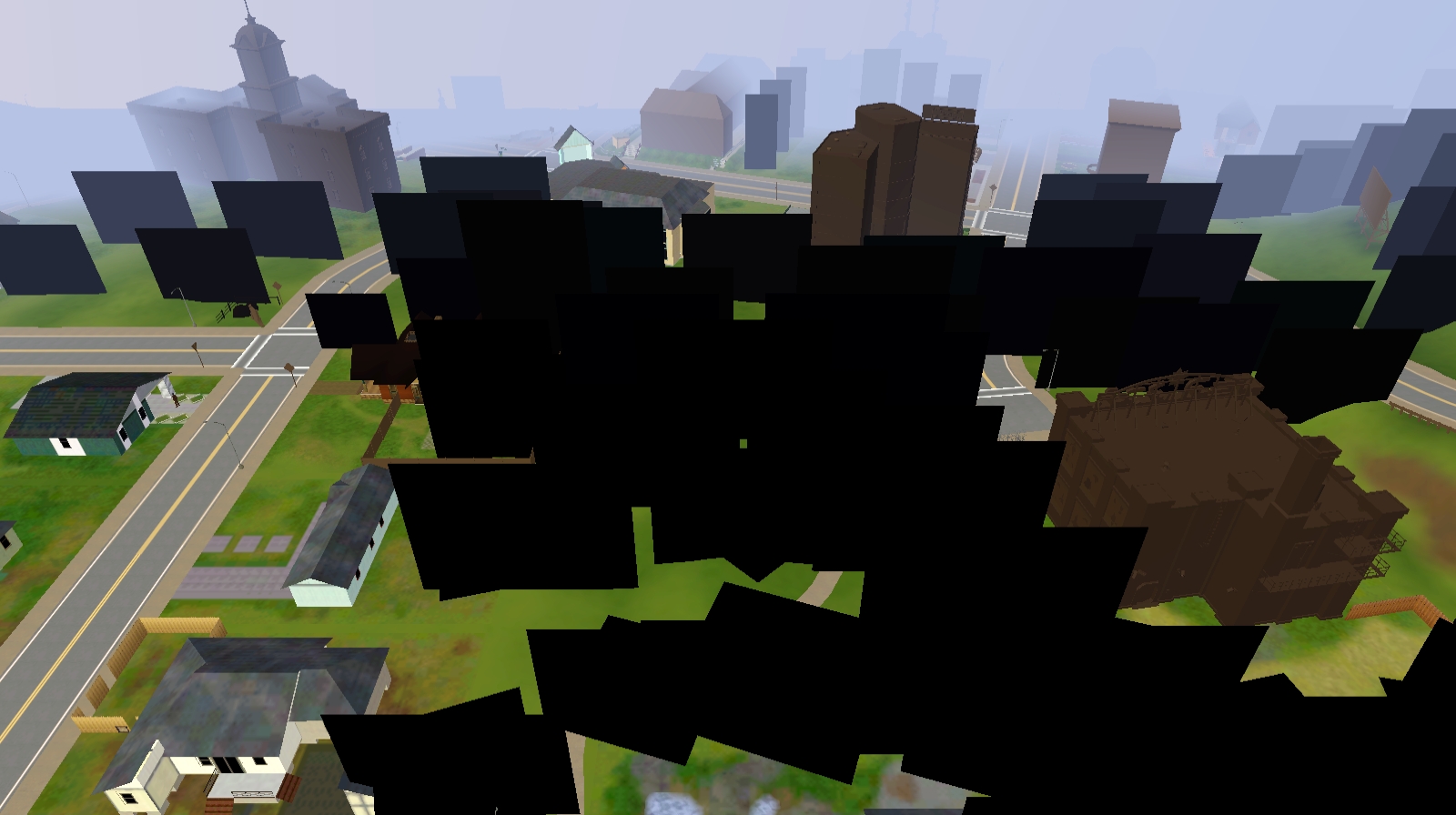
My sims are weird looking and the lots show up as black. This suddenly started happening when I switched to a new laptop. I think this has something to do with my graphics card but I tried reinstalli...


@stacieokay12 Please try changing the in-game resolution and switching between fullscreen and windowed modes. You can do this with a save loaded, but please reload the game at least once in each mode (fullscreen and windowed) to see whether it helps.
If not, the next step would be to clean uninstall and reinstall the graphics driver. You actually have a newer driver than the one listed for your laptop, although that may be an oversight on Dell's part. Regardless, it's easy to update an older driver to a newer one, so it's not a big deal to install a slightly old driver. Download Display Driver Uninstaller from here:
https://www.wagnardsoft.com/forums/viewtopic.php?f=5&t=3480
Download the Intel UHD Graphics Driver from here:
https://www.dell.com/support/home/en-us/product-support/product/inspiron-15-3501-laptop/drivers
Next, take your computer completely offline—disable wifi and/or pull the ethernet cord—and double-click the DDU.exe. Take note of where the file will land, and click Extract. If it's easier, you can copy the path and then paste it into the address bar in a File Explorer window. Open the folder and then launch Display Driver Uninstaller.exe, and you'll get a message that you're not in Safe Mode. Click OK, then go to Options and enable Safe Mode dialog. Here's a screenshot of what your options should look like; make sure the box in red is checked:
Close options, and the DDU, and then open the DDU.exe again. For launch options, choose "Safe Mode (Recommended)," and then click Reboot to Safe Mode (you'll need your password, so find it before rebooting). Once you login, you'll see this:
In the blue box, choose GPU, then Intel if it's not already showing. Then click Clean and Restart (red box).
Once your computer has rebooted, now back in normal mode, run the driver install .exe as an admin: right-click on the download and select "Run as administrator." Restart again when you're done and before trying to play.
@stacieokay12 Alright, it's worth getting your graphics chip recognized. It shouldn't matter, and usually skipping that step doesn't cause anything like what's in your screenshots, but you've tried most of the other fixes already.
Yyou're looking for a couple of files called graphicscards.sgr and graphicsrules.sgr, which are both located in the Sims 3 program files. For a Steaam install, the default file path is:
Program files (x86)\Steam\steamapps\common\The Sims 3\Game\Bin
Note: These instructions only apply to and will only work for the original poster's graphics card. If you'd like help getting your own card recognized, please post the same information from deviceconfig and ask for help.
Open graphicscards.sgr (Notepad works fine), and crtl-F to search for 8086. That will take you to these lines:
vendor "Intel" 0x8086
card 0x0042 "Havendale"
card 0x0046 "Havendale"
Create a new line under the "Intel" 0x8086 line, copy this text, and paste it in the new line:
card 0x8a56 "Intel UHD Graphics"
So you should now see this:
vendor "Intel" 0x8086
card 0x8a56 "Intel UHD Graphics"
card 0x0042 "Havendale"
card 0x0046 "Havendale"
(with indents from spaces that this site isn't displaying properly). Save, quit, and open graphicsrules.sgr. Crtl-F and search for Havendale, which will take you here:
if (match("${cardName}", "*Havendale*"))
seti cardLevel $cardLevelMedium
seti isCardMatched true
elseif (match("${cardName}", "*4?00*"))
Create a new line under the "true" in the third line above, and add this:
    elseif (match("${cardName}", "*UHD Graphics*"))
seti cardLevel $cardLevelMedium
seti isCardMatched true
Add a tab before each seti, to match the formatting with the other entries. Save, quit, and delete options.ini, again, to allow the game to generate a new copy with the new default graphics profile.
Now launch the game and see how it looks. After you quit, please also check how deviceconfig.log lists your graphics chip, about 30 lines down. You should now see a [Found: 1, Matched: 1] next to the name.
Let me know both whether the game itself looks better and whether your graphics chip is now recognized.