Forum Discussion


crinrict
5 years agoHero+
@robdefalco With legacy you can't play any packs newer than ROM so I don't think that's really a solution.
Could you check if there's any other security software on your computer ? Bit unsure if you've answered that question with all the moving/merging I've done :D
Could you post your Computer's DxDiag?
- Press Windows-Key + R
- Type: DxDiag
- Click on Save all Information.
- Attach the Text File to your post
Could you check if there's any other security software on your computer ? Bit unsure if you've answered that question with all the moving/merging I've done :D
Could you post your Computer's DxDiag?
- Press Windows-Key + R
- Type: DxDiag
- Click on Save all Information.
- Attach the Text File to your post

5 years ago
Here it is
- crinrict5 years agoHero+@robdefalco You have actually some defender errors in your dxdiag.
Could you check your windows updates if all is updated ? - 5 years ago@crinrict Yes I’ll check what do I do to check? And ones I’ve checked after that what shall I do?
- crinrict5 years agoHero+
@robdefalco Go tp Windows Updates and see if there's any open updates you should be doing. If there are, install them.
- 5 years ago@crinrict Thank you and I have, it’s just really slow in updating and downloading it stopped after and said it couldn’t update please help if can.
- crinrict5 years agoHero+@robdefalco Does it give you any error why it can't update ?
- 5 years ago
Yes it says updates failed there were problems installing some updates , but we’ll try again later. Feature update to windows 10, version 20H2 Error 0x80070002
says that for some reason I’ve tried everything I’ve clicked try again and the same thing came up please help I’d appreciate it if you could, thank you.
- crinrict5 years agoHero+
@robdefalco Can you check your system time and make sure it's current (google if you need help with that, I'm currently a bit short on time.
If that doesn't help, try this
(thanks @holger1405)
- Hit Windows key and X.
- Choose either “PowerShell (Administrator)” or “Command prompt (Administrator),” whichever option is offered.
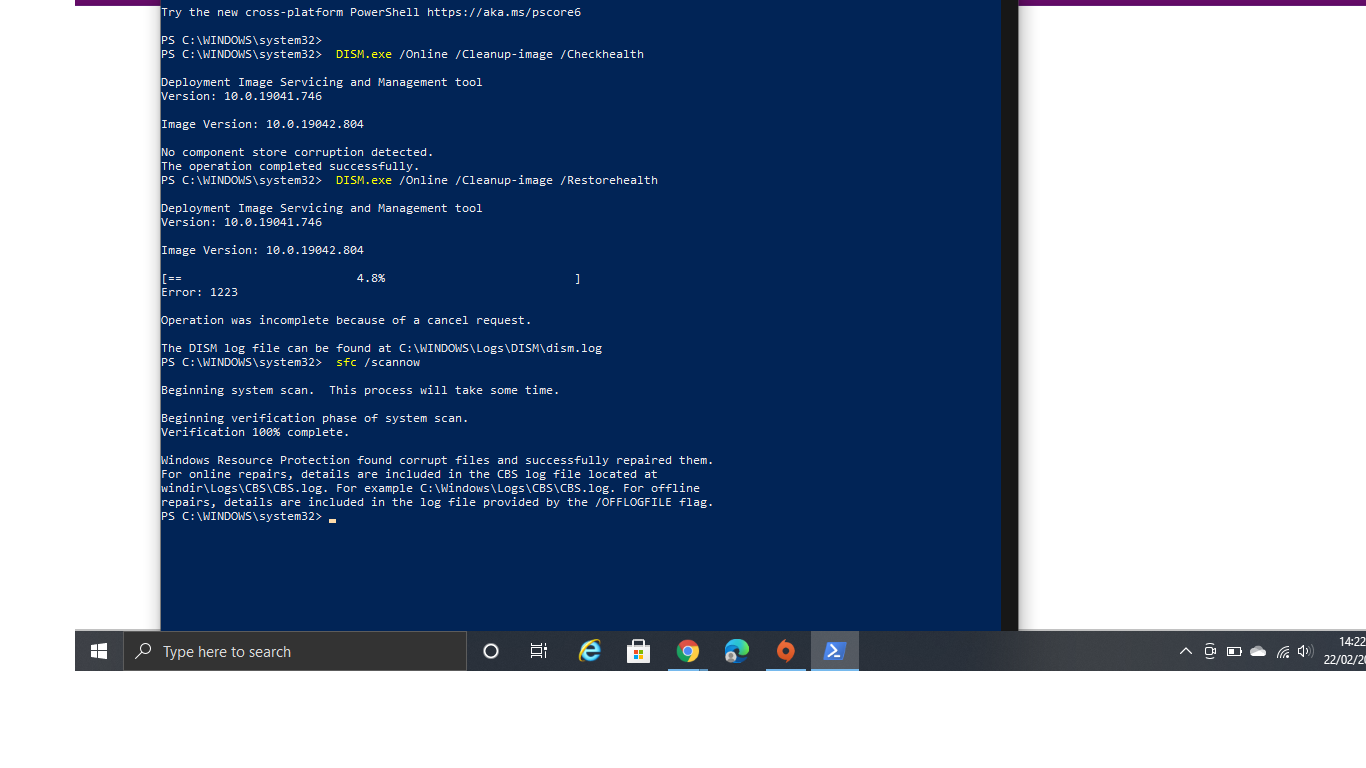
- Inside the PowerShell or CMD, enter “DISM.exe /Online /Cleanup-image /Checkhealth” without quotes. > ENTER.
- If no errors were found reaped steps 1 & 2.
- Inside the PowerShell or CMD, enter “DISM.exe /Online /Cleanup-image /Restorehealth” without quotes. > ENTER.
- The system will start validating soon. If it throws an error, please list it here.
- After it reaches 100%, hit Windows key and X again.
- Again, choose “PowerShell (Administrator)” or “Command prompt (Administrator)”
- Inside the PowerShell or CMD, enter “sfc /scannow” without quotes. >ENTER.
- Post the message you receive at the end of the processes here.
The Windows error you have is 0x80070002. There's lots of other suggestions on the net on that.
- 5 years ago
Hello I’ve tried that and all it keeps on saying is error I’ve tried them all it’s saying it’s saying the terms are not correct and no recognisable as the name of a Colette function script file or operable program. Please check spelling of the name or if a path was included, verify that the path is correct and try again. But thing is I have that if it’s correct I really don’t know what it would say this.
- 5 years ago@crinrict Also what did you mean by this?
Post the message you receive at the end of the processes here?? I’m unable to post I don’t know how you do it  holger14055 years agoHero+
If I understand you right the commands in @crinrict last post don't work.
So lets get that step by step.
- Press the Windows key and the "X" key at the same time.
- Choose either “PowerShell (Administrator)” or “Command prompt (Administrator),” whichever option is offered.
- Copy and paste the line below this line into the PowerShell or CMD Window.
DISM.exe /Online /Cleanup-image /Checkhealth - Press ENTER.
- If no errors were found copy and paste the line below this line into the PowerShell or CMD Window.
DISM.exe /Online /Cleanup-image /Restorehealth - Press ENTER.
- The system will start validating soon. If it throws an error, please list it here.
- If there are no errors copy and paste the line below this line into the PowerShell or CMD Window.
sfc /scannow - Press ENTER.
- At the end of the sfc /scannow process there will be a status message.
Either screenshot this message or just wrote the wording down and post it here.
- 5 years ago
Hello thank you for this it still didn't work but I finally managed to update windows. i'm now on windows 10 version 20H2, but it still won't let me play the sims 4 in x64 mode only 32 bit. I really have no idea why.
- holger14055 years agoHero+
Can you please post a new DxDiag created under 20H1?
- 5 years ago@holger1405 Yes how would I post a new one? It gives me the same one
 puzzlezaddict5 years agoHero+
@robdefalco Run a new dxdiag in the same way as you ran it before, then attach the new one you've created to a post.
- 5 years ago
There you go, this should be the new dxdiag
- 5 years ago@puzzlezaddict Really sorry if it's the same one, I still don't know how you post a new one that says win 10 H2, someone please help
- holger14055 years agoHero+
- 5 years ago@holger1405 What commands again sorry? And btw is it not good to use wicked wims if I download that on the game and others like mods?
- 5 years ago
There you go. This explains why it will not let me do what you've said on the post.
- puzzlezaddict5 years agoHero+
@robdefalco Your commands are missing the spaces. Please simply copy and paste the commands Holger1405 posted, rather than typing them out.
As far as a certain mod that shouldn't be mentioned on this site goes, you're free to do with your game what you will. But please don't add any mods or custom content until your game is working again.
- 5 years ago
Here it is, thank you for this what's next?
- holger14055 years agoHero+
- Try to repair the game.
(Origin > Game Library > right click TS4 > Repair / in Steam > right click at MEA > Properties > Local Files > Verify integrity of game cache)
(Steam > right click at TS4 > Properties > Local Files > Verify integrity of game cache.) - Test the game.
- Try to repair the game.
- 5 years ago@holger1405 Thank you and I’m on origin I don’t have steam. Do I repair the game again on 64 bit instead of 32? In fact it’s still not working on 64 only 32 but I’m going to do what you’ve told me and follow those instructions.
- 5 years ago
I’ve tried that. Repaired it from origin and yet still not working, it’s doing the same thing about the error initialization code on 64 only let's me play 32 still. It’s no different I’ve tried everything and still doing the same thing!
- holger14055 years agoHero+
OK.
Press the Windows key > Write "CMD" (Without the quotation marks) > Right click on "Command prompt" in the search results. > Run as administrator.
-
Copy and paste (Without the quotation marks) "findstr /c:"[SR]" %windir%\Logs\CBS\CBS.log >"%userprofile%\Desktop\sfcdetails.txt" into the prompt of the command prompt. > ENTER.
(Copy it here and right click in the command prompt Window.) -
Upload the "sfcdetails.txt" that is now on your desktop.
-
Featured Places