Forum Discussion

Re: Game Crashes on Loading Start-Up Screen - Only when launching with Directx 9

Okay, so I checked for both VoiceMeeter software and Gigabyte App Center. I have nothing audio-related plugged into my computer other than my monitors, headset (which is wireless so just the charger), and my microphone. I remember downloading Voicemeeter Banana like 5+ years ago but I'm 99% sure I deleted it then and I can't find any file named VoiceMeeter or Banana. Same thing with Gigabyte App Center, I went to look for it on Task Manager and there's nothing. I tried to look for it on the "start-ups" tab too and there was nothing there either. The only Gigabyte I have on Task Manager/my computer is Gigabyte Update Service which I'm assuming is for my motherboard.

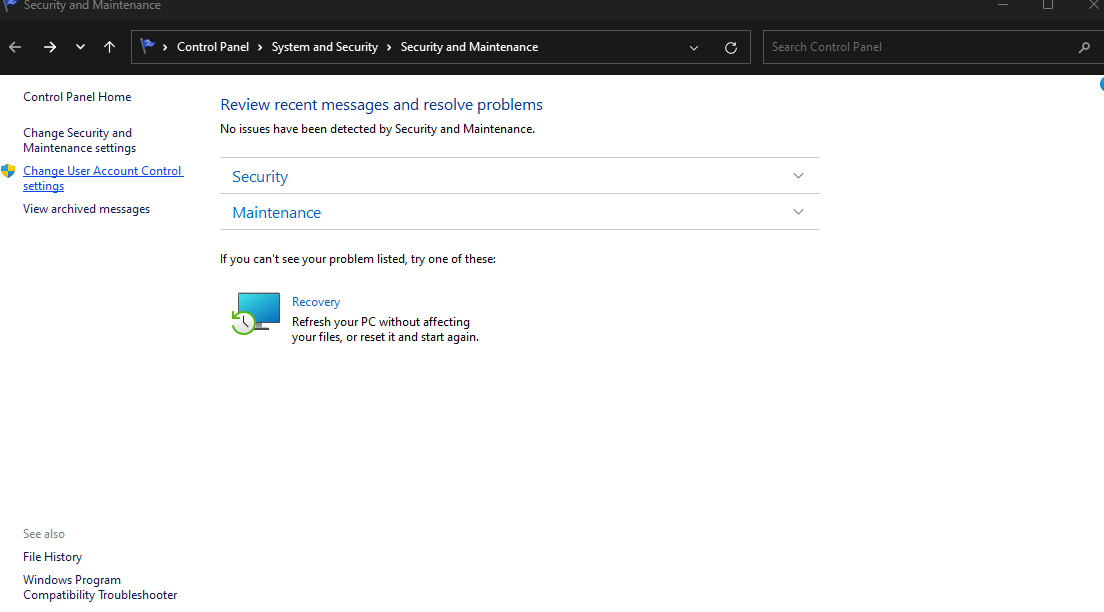
I opened my game again, and it stopped responding but I left it and didn't do anything on my computer for roughly 40 minutes and when I got back it was still unresponsive on the loading screen. I had to shut it down and he's what perfmon /rel says: "The program TS4_DX9_x64.exe version 1.110.265.1030 stopped interacting with Windows and was closed. To see if more information about the problem is available, check the problem history in the Security and Maintenance control panel." I check the control panel and there's nothing about it there. I am on the most recent windows update if that makes a difference.

2 Replies

  • @Myeshx  For VoiceMeeter, click Windows key-X, select the Device Manager, open the Audio section, and look for any related entries.  If you find one, right-click its name and uninstall.  Repeat for the Sound section.

    For the Gigabyte software, I was going by what the internet said ApCent.exe belongs to, because that's what's crashing.  You can see it in your Reliability Monitor chart too.  If you look at the technical details for these errors, you should be able to see where ApCent.exe is located on your computer, which may tell you what it belongs to.  If it's something you don't want to uninstall, at least disable the program for now.

    Another approach is to click Windows key-R, enter msconfig in the run box, and find whatever related service is the issue on the list.  (It helps narrow things down if you hide Windows services first.)  Any service you uncheck will be unable to start but won't be uninstalled.  This is completely reversible, so it's a simple way to disable something without having to change your setup.

    More generally, disabling all non-Windows services listed under msconfig is what's known as a clean boot, and playing in a clean boot would be my next suggestion here.  You'd need to leave the EABackgroundService enabled, since the EA App won't run without it; disable the rest and restart your computer.  Then go through the Task Manager's background processes list making sure nothing extraneous is still active, for example MSI Afterburner or RGB software can still be running in a clean boot.  If you accidentally kill the wrong process, restart again.

  • Myeshx's avatar
    Myeshx
    New Novice
    1 year ago

    I found Voicemeeter and deleted the app center folder for Gigabyte. I then turned off all non-Windows services (except for a few anti-cheat programs that other games need) and disabled a few programs I had running on start, and it worked! I'm 90% sure it was Medal, the recording software I use for clips, stopping it from running for some reason. It was super weird that it was only when using Directx 9, but thank you so much for the help! I should've tried closing anything and everything via task manager at the start but I never had a problem with medal and dx9 until now so I didn't even think to try that.

    Thanks so much again!