🛠️ Creating a symlink in macOS to store the Sims 4 folder on an external drive
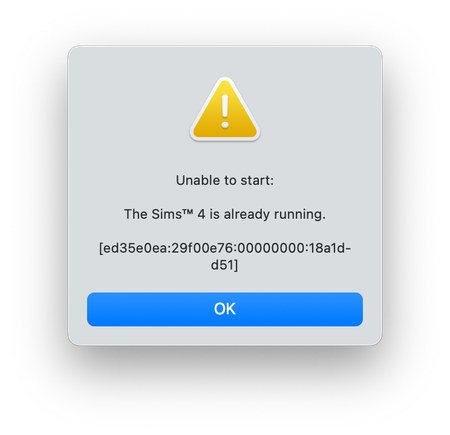
➡️ This is not to be confused with installing the actual Sims 4 game on an external drive. The game installation location is determined in EA App and there is no need to use a symlink for this. As internal storage gets smaller we're forced to use cloud based solutions to store files and folders or resort to a trusty external drive. Cloud based only storage is not an option for the Sims 4 folder that contains all your saves, Mods, Library items and other user data because the game only looks in one place for your data: Macintosh HD > Users > [your user account] > Documents > Electronic Arts > The Sims 4 If there is no Sims 4 folder in that location the game will create a new one. There is no way around this default Sims 4 folder location unfortunately, it is hard coded into the game. Because of this the only option to store the Sims 4 folder on an external drive is to create a symbolic link, otherwise known as a symlink. Creating the symlink is relatively easy provided you understand the concept of what a symlink is and why you are creating it. You should also be familiar with Terminal on your Mac and the security and permission systems in place in whichever version of macOS you are running as these dictate the ability for the game to access the external drive and whether your Mac user account has permission to grant the necessary access. You should also make sure you are using a good quality, fast external drive. You get what you pay for and if you bought a cheap drive, with low quality cables, you will most likely struggle to get the symlink to work because it will be too slow. For help buying an external drive and what to look out for read this guide. I am not going to write step by step instructions here, the post will be far too long. Instead, you can read the detailed and comprehensive guide I wrote several years ago here https://bluebellflora.com/saving-your-sims-4-folder-to-an-external-drive/ If your symlink is not working it is down to user error. It really is that simple. macOS is a Unix based operating system and as such uses Unix commands which are all provided in the above linked guide. This thread is for consolidating all posts related to the Mac symlink process here at Answers HQ. If you're a Windows user read Crinrict's excellent guide here https://crinrict.com/blog/2020/02/moving-windows-documents-folder-to-external-drive-via-symbolic-link.html. What I have provided below are a few of the common issues people face as a result of not entering the commands correctly or having the correct permissions in place. Common issues reported and the solution: Always check your external drive has the correct name in Disk Utility: open Disk Utility (Applications > Utilities) change View to Show All Devices then click on the drive in the left sidebar the Mount Point shows the name of your drive. If there is a number added to the drive name it means the drive has not been properly ejected multiple times Close Disk Utility and eject the drive In Finder click on Go in the menu bar then Go To Folder. Enter /Volumes in the input field and hit return in the /Volumes location, trash the folder(s) that has the same name as the external drive Close Finder, plug the drive back in, open Disk Utility again to check the drive name in the Mount Point. If it matches try to create the symlink In addition to checking the external drive mount point above, the following may also be helpful: Terminal states my access/permission is denied check your Mac user account is an Administrator account and not a Standard account. check that Terminal has access to external drives, also known as Removable Volumes, and your Documents folder. I'm constantly getting "Unable to start... Cannot start because the below file appears to be corrupted" error message make sure the external drive is correctly formatted as either APFS or Mac OS Extended (Journaled). If it isn't, reverse the symlink, reformat the drive in Disk Utility and start again. check your Mods actually aren't corrupted by downloading a compatible version from the creator. I keep getting the error message "Unable to start... The Sims 4 is already running" make sure the external drive is correctly plugged in and mounted. check EA App has access to the external drive in System Settings > Privacy & Security. Give it Full Disk Access if necessary. disable iCloud Drive if the symlink folder in Documents is a white page instead of a folder with the little arrow the symlink has broken. Trash it and attempt to recreate the symlink. Check the Mount Point in Disk Utility shows your exact external drive name and doesn’t have a number added to the drive name. If it does this means your drive has not been properly ejected multiple times. To fix it: eject the drive in Finder click on Go in the menu bar then Go To Folder enter /Volumes in the text field and hit Enter/Return in the Finder window that appears you should see a folder, not a drive icon, with the same name as your external drive. Trash it. plug the drive back in, check the mount point in Disk Utility is the exact drive name with no appended numbers, then try to create the symlink again. if the mount point is still showing a number you have problems with your drive. Consider reformatting it, trying different connector cables, or getting a better drive. Terminal tells me No such file or directory did you copy and paste the command from the guide and correctly substitute the name of your external drive? If you didn't copy and paste you may have used the wrong letters in the command. Copy and paste from the guide. Does the folder you are trying to move or create a symlink to exist in the location you are stipulating in the command? Terminal tells me Directory not empty in Step 1 Is there already a folder on the external with the same name as the folder you're moving? i.e. have you already copied over the Electronic Arts folder? If there is already a folder with the same name as the folder you're moving, Terminal will return this result. Terminal tells me File already exists in Step 2 of the guide Did you correctly complete step 1 or is there still an Electronic Arts or Sims 4 folder in your Documents folder? If the folder is still there you have not correctly moved it in Step 1. If you have iCloud Drive enabled to store your Documents folder in the cloud and Optimise Storage enabled, it will cause issues with the symlink. I strongly advise to disable this iCloud feature otherwise you will have issues, especially if you use Mods. As a reminder, creating this symlink is aimed at people storing their Electronic Arts/Sims 4 folder locally. Using iCloud Drive stores your folder in the cloud and locally. For help with iCloud see this thread https://answers.ea.com/t5/Technical-Issues-Mac/READ-FIRST-Saves-CC-Mods-or-Library-items-disappeared/m-p/1024213329KViews3likes649CommentsUnable to start: The Sims 4 is already running - Mac only
If you're experiencing this error message it doesn't mean your game is already running, the actual message itself is incorrect. It means The Sims 4 cannot access the Electronic Arts > The Sims 4 folder to load your user data when you attempt to launch the game. This is essentially a permissions issue which can be resolved based on your setup: - If you have just installed or reinstalled the game - If you have iCloud Drive enabled and it is syncing your Desktop & Documents folders - If you have recently updated your Mac or the game - If you have moved your Electronic Arts > The Sims 4 folder to an external drive and created a symlink in your Documents folder ______________________________________________________________ If you have just installed or reinstalled the game: You would have been prompted to allow The Sims 4 permission to access the Documents folder, this is security built into macOS. This is so it can access the Electronic Arts > The Sims 4 folder in your Documents folder, if one already exists, or create a new one if it doesn't exist. If you clicked Don't Allow when prompted the game cannot read and write to the Documents folder, resulting in the error message. Fix - Open System Settings > Privacy & Security > Files and Folders (you will need to use an Mac Administrator account to access this) and enable access to the Documents folder by clicking the toggle on: If you do not see this option open System Settings > Privacy & Security > Full Disk Access (you will need to use a Mac Administrator account to access this). Click the + in the bottom left corner, below the list of apps. A Finder window will open to the Applications folder. Navigate to where your game is installed, by default this is Applications > EA Games, click on it and then click Open. It will now be added to the Full Disk Access list. Make sure it is toggled on. Whilst giving the game Full Disk Access isn't ideal, and shouldn't be necessary, it is a quick and easy solution to fixing the error message and the game is signed and notarised by Apple. ______________________________________________________________ If you have iCloud Drive enabled and it is syncing your Desktop & Documents folders: This is a really common cause of this error message and is as a result of your Mac storage being full resulting in iCloud pushing the entire Documents folder to the cloud. The game cannot see the Documents folder and its contents because it is not local on your machine, therefore it cannot access the Electronic Arts > The Sims 4 folder to load user data at launch. Fix - Open System Settings > Apple Account > iCloud > Drive and disable the Desktop & Documents folders syncing. Be aware of the effect this will have if you use multiple Apple devices to access these folders: ______________________________________________________________ If you have recently updated your Mac or the game: Sometimes permissions can go awry after updating the OS or you have been prompted to change settings after updating and inadvertently clicked the wrong thing. Fix - check all of the applicable settings in the instructions above ______________________________________________________________ If you have moved your Electronic Arts > The Sims 4 folder to an external drive and created a symlink in your Documents folder: There can be multiple reasons for the error message when a symlink has been set up but they are all caused by the game not being able to access the Electronic Arts > The Sims 4 folder: your external drive is not plugged in and properly mounted. Check the drive is plugged in and showing in Finder/on your Desktop. your symlink is broken. This can be checked by looking at the symlinked folder in your Documents folder. If the icon is a white file and not a folder it is broken. Trash it and recreate the symlink in Terminal. If you have further issues refer to the dedicated symlink thread opening post. the game does not have access to Removable Volumes (external drives) in System Settings > Privacy & Security > Files and Folders. You would have been prompted to give permission when launching the game for the first time after successfully creating the symlink and maybe denied it. Give the game access: you have iCloud Drive syncing your Desktop & Documents folders to the cloud which does not work well with the symlink. Disable it (see above for further instruction). your external drive has not been ejected properly multiple times resulting in the OS changing the mount point. Check Disk Utility and rectify, see the dedicated symlink thread opening post for further instruction. ______________________________________________________________ If you're still stuck a really quick and easy way to resolve this is to create a new Administrator account on your Mac and play the game in that account. When you first launch the game in that account you will be prompted to give all the necessary permissions for the game to access the Documents folder - make sure you allow it 😊8.5KViews0likes524Comments
Which Mac laptop is best for Sims 4?
I don't know if this has been asked lately, but I had extremely helpful advice from users on the old forum about this around seven years ago. Last time, Bluebellflora and others pointed me to a Mac Pro 15 inch 2017 16gb, which had two graphic cards - radeon pro and intel hd graphic - and a fan. The Sims 4 has run brilliantly on it and I've been really glad that I got it. Unfortunately after heavy use the hardware is beginning to show its age a bit, even though the Sims still works just fine. So, I am starting to look around at what Mac laptops are available to replace it. I have some specific questions, but any tips at all will be gratefully received. 1. Is M3 good enough or do you need to go M3 pro or M3 max? 2. My current laptop has a fan, but I understand the new ones are all solid state so this is no longer something to think about? 3. Probably this is a stupid question, but I am have a big saved game and I am most concerned not to lose it when I get a new laptop. I back up my current game on an external harddrive. If I get a new laptop that is compatible with this external hard-drive, will I be able to just plug it in and transfer my current save over with no issues? Are there any pitfalls to be aware of when doing this? 4. General call out - what Mac laptop do you have, and do you recommend it? The last thread I could find on this topic was on the old forum: https://answers.ea.com/t5/Mac/Which-MacBook-is-best-for-Sims-4/td-p/7117235/page/2 Sorry if I'm duplicating a new one though. I'm still trying to get the hang of the new forums. I will delete and copy this post over if necessary.Solved1.6KViews0likes4Comments
Help: Sims 4 Won’t Start on Mac – Game Installed Externally
Hello, I recently got a MacBook (previously had an HP laptop) and wanted to install my Sims 4 games on it. However, I could only install them on an external hard drive because I don't have enough space on the MacBook itself. I did this, but when I try to launch the game, I get the following error message: "Unable to start: Cannot start because game data is missing or damaged. Try repairing or reinstalling the game via Origin. [85262c58:29f00e76:00000000:00000000]" What I’ve already tried: Restarting the MacBook Repairing The Sims 4 via the EA app (in the game library) Can someone please help me? For clarity: The game is installed on an external hard drive. I created a custom folder there which contains the following: The Sims 4 (with the icon) EA app Blue folder “Electronic Arts” Blue folder “The Sims 4 Packs” Blue folder “The Sims 4.app”
EA app does not recoginze external hard drive
I've seen a lot of people playing The Sims on an external hard drive and decided to try it out myself. I have the Seagate Portable 2TB external hard drive HDD and I made sure to erase the hard drive and change the format to Mac OS journaled. I made a copy of my electronic arts folder on the hard drive and changed the download destination, but every time I try to download the game the EA app says the folder does not exist. Just wondering if anyone else had this problem and how could I go about fixing it.
Moving Sims 4 game to an External Drive
Hi everyone, I really like playing the Sims and I'm not that tech savvy, please help. I want to move my origin application and my Sims 4 game and files to an external drive and I've been told that all I would have to do is open the Origin application and move the game but I do not have the option to do so. I've tried going to Origin's preference and then going to "Installs and Saves". I have tried to change the location of the game library but my external hard drive doesn't show up. I can't choose another location beyond my user profile's desktop. I have uninstalled my Sims 4 game and restarted my computer and I still don't see the option to move game. I am using a 2017 Macbook Air by the way. Thanks in advance!
Transferring Sims 4 from one external drive to another
I’ve been playing sims on my mac with an external drive but the storage on it is now full. I want to get a new external drive that holds more storage but I’m wondering if I can transfer sims from that external drive to another.399Views0likes11Comments
Sims 4 crashing on Mac
Has any other Mac user experienced almost unusable gameplay since the 25th anniversary update? I had no issues before this update and honestly, my game ran so well I couldn't understand it when people would say they were experiencing crashing. Force quitting and repairing my game does not fix it. I have mods (just MC Command Center) but uninstalled it to see if they were causing the issue, and they were not the culprit. I also have had issues with WooHoo and trying for a baby, where the initial start of the interaction happens but then the icon goes away and they never do anything. Same with divorce. Build mode is just as laggy and glitchy and then crashes again! Hopefully this will be resolved before the new expansion pack comes out!
I NEED HELP PLEASE! "Unable to Start, Game has run out of Memory"
Hello All, Frustration is not even the right word. I have done everything the internet suggested for my MAC and nothing is working. I have attached all the photos of the error I get. Could something please help! I chatted with EA and they could not help. My game is running on an SSD. It was working fine. Here are something I tried. Cleared cache Uninstalled the game uninstalled EA tried a new account deleted activities to free up RAM space Please Help! I invested so much into this game.