[READ FIRST] Saves, CC/Mods or Library items disappeared? iCloud issues
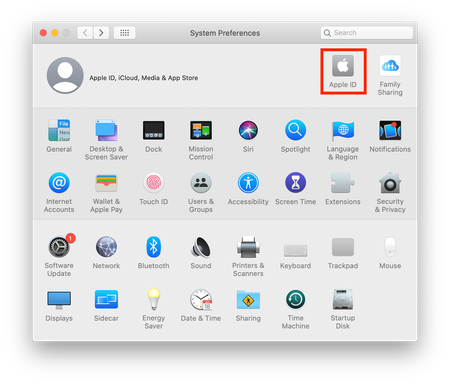

I've merged your post into the master iCloud thread. Please see the opening post for further instruction.

Hello, thank you for your reply. I tried following all of the instructions from that and it still kept making new save files. I'm not sure what else to do.
Go to Applications > Utilities then open Terminal and copy/paste this search command then hit Enter/Return:
find ~ -type f -name "*Slot_*" 2>/dev/null \
  -exec stat -f "%Sm %N" -t "%Y-%m-%d %H:%M:%S" {} \; | sort
Once the command prompt reappears it has finished. Please copy/paste all the search results here.
I'm sorry this is very long, I hope I did this correctly. I put it all into a google docs, let me know if you can't access it for some reason.
https://docs.google.com/document/d/1WnGREIoQYMgDEvKY8Bi4szEgy0Bpqwy593wtT5jQLO8/edit?usp=sharing
Thanks!
Files with eight letters and/or numbers ending in .save, e.g. Slot_00000004.save are save files the game will load IF they are in:
Macintosh HD > Users > mrianbakhaya > Documents > Electronic Arts > The Sims 4 > saves.
Files ending .verX where the X is 0-4, e.g. Slot_00000004.save.ver3 are backups and do not load unless the .verX is removed.
Going through them:
Users/mrianbakhaya/Library/Mobile Documents/.Trash/...⬆️ These were all in iCloud and have been trashed.
/Users/mrianbakhaya/Library/Mobile Documents/com~apple~CloudDocs/...⬆️ These are in iCloud where the game cannot access them to load.
So, all of your saves are in iCloud, they need to be in the local Documents folder: Macintosh HD > Users > mrianbakhaya > Documents > Electronic Arts > The Sims 4 > saves
You need to follow the instructions in the opening post and turn OFF iCloud Drive syncing so your Documents folder is local again.