[CURRENT ISSUE] Sims 4 saves/user content disappearing (PC)

Hi there,
Thanks for the quick response, as always.
I checked in Steam and somehow the "Steam Cloud Save" was set to enabled (..possibly a Steam up-date re-set it w/out asking ?...).
However, when I looked at "saved files" there were not even any games listed, so it seems nothing was saved/up-loaded to Steam.
I then turned the Steam Cloud setting back to "off", closed everything and tried opening Sims 4 again. However, still a brand new, empty starting page: no games, no library, nothing.
Just a thought: when I got this new laptop, you told me how to move all of my TS4 data from the C drive to the D drive (...by literally moving the original Windows 11 "Documents" folder from C to D...). Could it be that the game is now looking for files on the C drive and not finding anything??
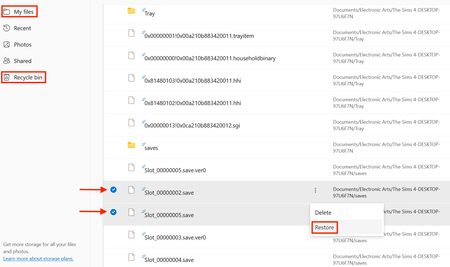
As far as I can tell, everything on the D drive looks perfectly normal (see enclosure). I.e.: it looks as though everything is still there (on my laptop)...but the game simply can't find it. Can I somehow 're-direct' the game back to this drive/folder?
Also, after searching the entire C drive I can't find any 'new' folders that might have been created by the game. In fact, under: "Windows-SSD (C\Users\Alex\....." there isn't even a "Documents" folder listed (...as we moved it to the D drive..).
Before doing anything this morning, I saved/copied my entire "D\Documents\Electronic Arts\The Sims 4" folder to a thumb drive.
In a pinch, I also still have my old laptop as a 'backup' - it would mean losing a month's worth of "work"....but still better than losing the entire game.
Any thoughts...?
Alex
@AlexvonAuen Is Sims 4 still reading the correct location? Perhaps something changed on that front. Here's how to check:
https://sims4.crinrict.com/eng/2018/07/how-to-find-your-user-folder/
If that's not the issue, please create a new save and see whether you can load it again after quitting and restarting your computer, and whether the save file lands in the same location as your others. The smaller save files look too small, like they might have been corrupted, although the ones that are 7 MB might be fine.
if the new save works after a restart and its file is in the correct location, try recovering a backup of one of your older saves. Use the manual method here:
https://sims4.crinrict.com/eng/2014/09/recover-backup-save-game/
Hello!
Thanks again for the tip.
It seems my hunch was correct, the game is apparently looking for everything on the C drive, under "Public" (see screenshot). When I looked through the entire C Drive yesterday, I was looking for "Documents", but here they are listed as "Public Documents", which I didn't notice.
Any good tips on how to (safely) get the game back on track on the D drive, where all of my 'old' TS4 files - and the original Windows 11 "Documents" folder - are located?
(...as a precaution, I've copied/saved the entire "D\Documents\EA\The Sims 4" folder to a Desktop folder..).
With regard to my Save Files:
I only have one single game, which I actually 'play'.....I'm assuming those are the files with 7,393 KB (Slot_0000005). The second game (Slot_0000008) with only 1,339 KB isn't actually a game at all: I simply opened it up a while back for when I want to try and/or test something, without risking any damage to my main game. When I'm finished 'testing' I simply close w/out saving.....so there is basically nothing in it, other than whatever is there from EA's base game.
So, now that I've had a thorough fright about losing my entire game (..assuming I can, indeed, get it back..), I've made a couple of new folders....completely outside of the "Documents" folder....(see enclosed) as an emergency backup. As I understand it, the "Saves" folder contains (only) the last five manual 'saves' from each game played. The "Tray" folder contains everything (Houses/Sims/Familes) I've uploaded/saved to my Library (albeit, as 'individual' saves...i.e., per item...and not the entire Library as one save).
I plan on copying the entire Saves and Tray folders there once a week, as a backup. In theory, in lieu of just five former 'saves', I would then have five 'saves' from each of the past couple of weeks to fall back on (..after a while, the 'older' saves could be deleted as needed...). Good idea.....or is there a better method???
Alex
@AlexvonAuen The next question is what folder Windows "thinks" is the correct Documents directory. For that, search in Windows for command prompt, open it, and copy and paste this command:
reg query "HKCU\Software\Microsoft\Windows\CurrentVersion\Explorer\Shell Folders" /v "Personal"
It should be the Documents folder you've chosen, but if it's not, you'll need to move the location again.
If Documents is in the correct location, Sims 4 apparently can't read it for some reason. This shouldn't be a problem with a secondary external drive, but perhaps moving Documents back to C, then back to D again, would help. Restart your computer after doing so and before trying to play.
As for your backups, the "best" method is the one that works for you and that you'll remember to do often enough to make it viable. I personally copy my entire user folder to an external every so often, but that's because I'm lazy and the external is a 4 TB drive with almost nothing else on it. Your method is perfectly viable, so there's no reason not to use it until and unless you decide to take a different approach.
Hello Puzzleaddict,
Sorry, was busy with 'work' the past few days.
Am now rather confused.
All of my TS4 data/saves/etc. are under: D\Documents\Electronic Arts\The Sims 4....
as they were from 02 Sep (date of new laptop) and up until last week it was all working perfectly.
As per your note from Monday, when I first looked for the path with 'reg query.....', it was indeed listed on the C drive. So I right-clicked 'Properties/Location/Move...' and sent it once again to the D drive (w/ no further subfolders).
My current 'reg query' setup is now reading as: HKEY_CURRENT_USER\Software\Microsoft\Windows\CurrentVersion\Explorer\Shell Folders
Personal REG_SZ D:\Downloads\My Documents
Why it is now reading 'Documents' as a subfolder of 'Downloads' is beyond me. Especially as, when I look in the 'Downloads' folder...it is empty (see screenshot).
Trying to move the 'Documents' folder (the one I can actually see...the one with TS4 data) back to C and then back to D again doesn't seem to be an option, as there is now no 'Location' button available (see screenshot).
I did try moving 'Downloads' back to C (i.e. back to the 'Default location') and then back to D again (restarting Laptop each time), but that doesn't seem to have done anything.
The game is still not finding the TS4 data on my D drive.
Would using Revo to completely remove TS4 (and possibly also Steam & EA) from the laptop (but first saving the data I still have!!) be of any help, or does the path the game is looking for have nothing to do with that?
When I first noticed the problem last week (i.e. when the game first showed up as "completely new"), it created new folders/files under: C\Users\Public\Public Documents\EA\The Sims 4.....
which are essentially empty. May I assume that those can be deleted (so that they don't confuse the game)?
Once again, many thanks for your patience and assistance.
Alex