[CURRENT ISSUE] Sims 4 saves/user content disappearing (PC)

Hello!
Thanks again for the tip.
It seems my hunch was correct, the game is apparently looking for everything on the C drive, under "Public" (see screenshot). When I looked through the entire C Drive yesterday, I was looking for "Documents", but here they are listed as "Public Documents", which I didn't notice.
Any good tips on how to (safely) get the game back on track on the D drive, where all of my 'old' TS4 files - and the original Windows 11 "Documents" folder - are located?
(...as a precaution, I've copied/saved the entire "D\Documents\EA\The Sims 4" folder to a Desktop folder..).
With regard to my Save Files:
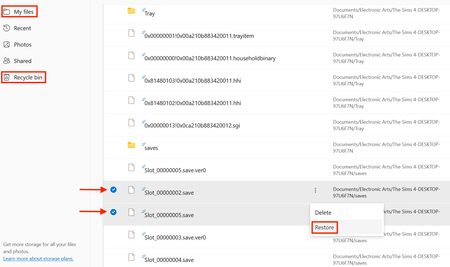
I only have one single game, which I actually 'play'.....I'm assuming those are the files with 7,393 KB (Slot_0000005). The second game (Slot_0000008) with only 1,339 KB isn't actually a game at all: I simply opened it up a while back for when I want to try and/or test something, without risking any damage to my main game. When I'm finished 'testing' I simply close w/out saving.....so there is basically nothing in it, other than whatever is there from EA's base game.
So, now that I've had a thorough fright about losing my entire game (..assuming I can, indeed, get it back..), I've made a couple of new folders....completely outside of the "Documents" folder....(see enclosed) as an emergency backup. As I understand it, the "Saves" folder contains (only) the last five manual 'saves' from each game played. The "Tray" folder contains everything (Houses/Sims/Familes) I've uploaded/saved to my Library (albeit, as 'individual' saves...i.e., per item...and not the entire Library as one save).
I plan on copying the entire Saves and Tray folders there once a week, as a backup. In theory, in lieu of just five former 'saves', I would then have five 'saves' from each of the past couple of weeks to fall back on (..after a while, the 'older' saves could be deleted as needed...). Good idea.....or is there a better method???
Alex
@AlexvonAuen The next question is what folder Windows "thinks" is the correct Documents directory. For that, search in Windows for command prompt, open it, and copy and paste this command:
reg query "HKCU\Software\Microsoft\Windows\CurrentVersion\Explorer\Shell Folders" /v "Personal"
It should be the Documents folder you've chosen, but if it's not, you'll need to move the location again.
If Documents is in the correct location, Sims 4 apparently can't read it for some reason. This shouldn't be a problem with a secondary external drive, but perhaps moving Documents back to C, then back to D again, would help. Restart your computer after doing so and before trying to play.
As for your backups, the "best" method is the one that works for you and that you'll remember to do often enough to make it viable. I personally copy my entire user folder to an external every so often, but that's because I'm lazy and the external is a 4 TB drive with almost nothing else on it. Your method is perfectly viable, so there's no reason not to use it until and unless you decide to take a different approach.
Hello Puzzleaddict,
Sorry, was busy with 'work' the past few days.
Am now rather confused.
All of my TS4 data/saves/etc. are under: D\Documents\Electronic Arts\The Sims 4....
as they were from 02 Sep (date of new laptop) and up until last week it was all working perfectly.
As per your note from Monday, when I first looked for the path with 'reg query.....', it was indeed listed on the C drive. So I right-clicked 'Properties/Location/Move...' and sent it once again to the D drive (w/ no further subfolders).
My current 'reg query' setup is now reading as: HKEY_CURRENT_USER\Software\Microsoft\Windows\CurrentVersion\Explorer\Shell Folders
Personal REG_SZ D:\Downloads\My Documents
Why it is now reading 'Documents' as a subfolder of 'Downloads' is beyond me. Especially as, when I look in the 'Downloads' folder...it is empty (see screenshot).
Trying to move the 'Documents' folder (the one I can actually see...the one with TS4 data) back to C and then back to D again doesn't seem to be an option, as there is now no 'Location' button available (see screenshot).
I did try moving 'Downloads' back to C (i.e. back to the 'Default location') and then back to D again (restarting Laptop each time), but that doesn't seem to have done anything.
The game is still not finding the TS4 data on my D drive.
Would using Revo to completely remove TS4 (and possibly also Steam & EA) from the laptop (but first saving the data I still have!!) be of any help, or does the path the game is looking for have nothing to do with that?
When I first noticed the problem last week (i.e. when the game first showed up as "completely new"), it created new folders/files under: C\Users\Public\Public Documents\EA\The Sims 4.....
which are essentially empty. May I assume that those can be deleted (so that they don't confuse the game)?
Once again, many thanks for your patience and assistance.
Alex
@AlexvonAuen The game won't be confused by another Sims 4 folder; it'll just ignore that folder completely. Uninstalling typically doesn't help either in that the game is supposed to simply use whatever Windows says is the Documents directory. You can try it though if you get to the point where the game is using a different folder than the one Windows says it should, AND Windows is recognizing the correct folder.
Please try again to change the location of Documents to this, using the registry editing method:
C:\Users\your username\Docuements
Restart your computer, and run the reg query command to confirm the change has been respected. If it has not, stop here and let me know. If the change does register, use the same method to change the location of Documents to this:
D:\Documents
It needs to be the Documents folder specifically, not just D:\ with nothing else added.
The more invasive but perhaps more effective method here would be to create a new local user account (don't connect it to an email address) and change the Documents directory to D:\Documents there. You'd need to transfer any other data that's specific to your main user account, but that's straightforward enough. I do wonder, given your issues with the location of Documents, if something about your main account is corrupt. We could try to find it, but sometimes it's easier to sidestep it with a new account.
Hello PuzzleAddict,
I don't seem to be having a good week....(..apart from work...).
When trying to start Sims 4 - to see the path it is currently seeing/using - I now get only an error message (enclosed).
When trying to look up using "shell:Personal", I also get an error message (enclosed).
Am not quite certain (..may simply be having an off day..), but am not really sure how to move documents using registy editing. After looking through all of our previous messages, I assumed it is this https://www.elevenforum.com/t/move-or-restore-default-location-of-documents-folder-in-windows-11.8708/ , but I can't seem to even find the folder now in the registry.
Am currently considering copying the few things I have on this laptop to a thumb drive, setting the laptop back to factory settings...and simply starting again from scratch.
???
Alex