Forum Discussion


3 years ago
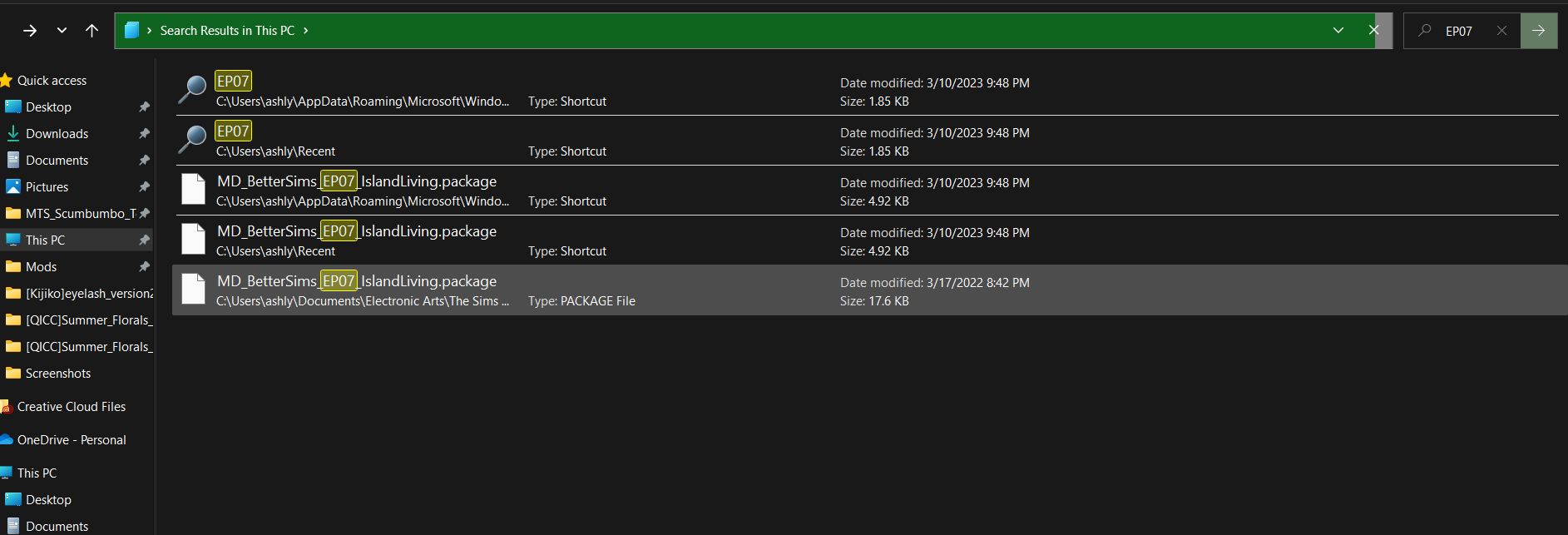
Those are both of the screenshots,

puzzlezaddict
3 years agoHero+
@ash080608 Thanks for the screenshots, and they confirm that neither pack is installed on your computer. Since this isn't the typical issue of the EA App installing the packs into the wrong folder, the only concrete suggestion I have is to do a clean uninstall and reinstall of Sims 4. But first, just in case this has a simple cause, please go into Documents > Electronic Arts and rename the Sims 4 folder to something that doesn't include "Sims 4" in the name. Then clear the EA App's cache again:
https://help.ea.com/en-us/help/faq/clear-cache-to-fix-problems-with-your-games/
Restart your computer, and see whether you can download the packs through Manage > Manage Add-ons on the main Sims 4 product page.
If the packs do seem to download, please test in-game. Because you renamed the Sims 4 user folder, your saves won't show up, but we can address that later. For now, just let me know whether your packs load.
If that doesn't work, the next step is a clean uninstall and reinstall.
- Make sure the former Sims 4 folder in Documents > Electronic Arts still doesn't say "The Sims 4" in its name. The new Sims 4 folder there can be deleted.
- Download Revo Uninstaller (the free version is fine) from here.
- Launch Revo, select Sims 4 from the list, and click Uninstall.
- Once the game is uninstalled, select "Moderate" under "scanning modes," and click Scan.
- Review the list, in case there's something you want to save; otherwise, click Select All, and then Delete.
- Close Revo, and restart your computer.
Please use Revo to clean-uninstall the EA App as well. I don't have a walkthrough for that, but it should be straightforward. Restart your computer again, reinstall the EA App, and install Sims 4 into a new folder that you create specifically for this purpose. The new folder should be on the root level of the drive of your choice. e.g. C:\Games, not C:\Program Files\Games.
Featured Places