Forum Discussion
2 years ago
- EA App/Steam/Epic: EA App
- EA ID/Steam user ID: redroguegambit
- Windows OS: 10
- Windows OS version: 22H2
- GPU model and driver version: Intel(R) Core(TM) i7-7700K CPU @ 4.20GHz 4.20 GHz, 27.21.14.6109
- Antivirus installed: Norton
- Connected via VPN: No
- Region: North America
- Are you using an internal or external drive? internal
- Are you using an HDD or SSD? SSD
- Date this issue started (is it still happening?) Since I installed EA App (not sure exactly when); yes it is still happening
- Any other errors?
- If possible, share a Screenshot or Clip:
- Attach a DxDiag:
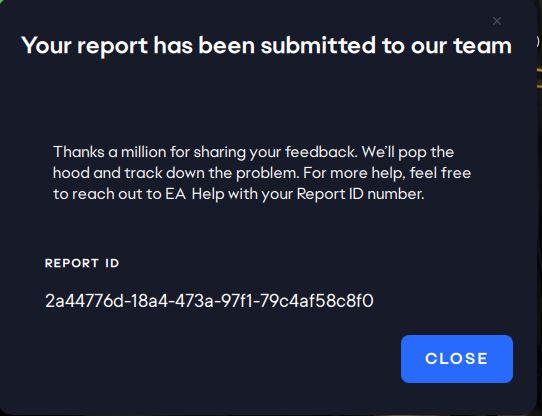
- Attach the EA App Error Report ID Here: 2a44776d-18a4-473a-97f1-79c4af58c8f0
EA_Shepard
Community Manager
2 years agoThank you and you can confirm that you have run through all steps on this thread and they all still give the same type of EC error?
- 2 years ago
Hello @EA_Shepard ,
Yes I can confirm that I am still having issues.
- EA_Shepard2 years ago
Community Manager
Hey Everyone.
Thank you all for the information. I have sent all the info along to the team. When I get an update I will post one here. For the meantime, I am continuing to look around at these errors as they seem network based in some way.
I would like to as if everyone could try the following as well.- Untick the options in LAN Settings (make sure nothing is checked under Proxy Server)
- Change DNS settings (You can use the public Google DNS primary: 8.8.8.8, secondary: 8.8.4.4)
- Change TCP/IP Settings
- Reset Windows Host File
DNS Flush
- Click the Start button. It’s the Windows logo in the bottom left corner.
- Select Command Prompt.
- To open the command prompt console, you could also simply press the Windows and R keys at the same time and enter cmd.
- You may see a popup asking if you want to allow Command Prompt to make changes to your computer. If you do, select Yes.
- If you are asked for an administrative login at this point, then you’ll need to contact your system administrator to proceed.
- In the command prompt window, type ipconfig /flushdns.
- Press Enter.
- You should see a message confirming that the DNS Resolver Cache was successfully flushed.