Game crashing or not loading especially after updating? Post here.


Hi, thanks for your reply!
Just to clarify: in my case, the EA Crash Reporter never appears at all. When I press Play in the EA App, nothing happens — no EA/Maxis logo, no loading screen, and the Sims 4 folder in Documents is not created. The game does not even begin to launch.
I did update the game — the latest Sims 4 patch installed successfully — but right after that update it stopped working. Before the update on Thursday, the game was running perfectly fine.
I already tried:
Still, Sims 4 won’t launch at all. So unfortunately I can’t provide a Crash Reporter screenshot, because it never pops up for me.
I was asking about the crash reporter because in your original message you stated this:
Ntshilaa wrote:Instead, the EA Crash Reporter pops up immediately.
but are you actually referring to the usual EA App window there? No error messages of any kind?
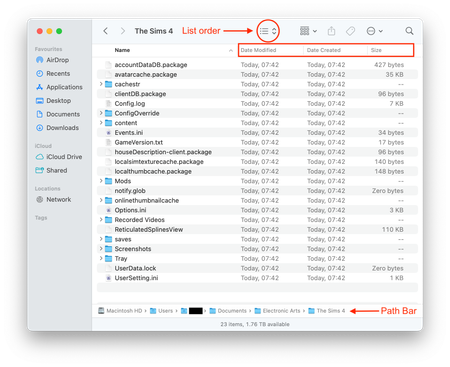
Do you currently have a Sims 4 folder in Documents > Electronic Arts?
Sorry, I explained it wrong before. What I actually meant is that the EA Crash Reporter only appeared once, the very first time I tried to launch Sims 4 after the update. Since then it has never shown up again.
When I press Play in the EA App, nothing happens at all. No EA or Maxis logo, no error messages, no crash reporter.
After I deleted and reinstalled both Sims 4 and the EA App, the Sims 4 folder in Documents > Electronic Arts never appeared again, because the game does not start far enough to create it.
So Sims 4 does not even begin to launch anymore.
Ok, thanks 🙂
Could you enter this search command in Terminal. It is searching for all directories named The Sims 4 on your Mac. Open Terminal (Applications > Utilities > Terminal) and copy this command then hit Enter/Return. It will start to list all the locations in your Mac user account where it finds a Sims 4 directory. If you get a dialog window prompting for Terminal to have access to various locations on your Mac click Allow. After a while the command prompt will reappear after the list of locations, this means it is finished. Please copy all the output and paste into a reply here. You can change your user account name, I don't need to know it but I do need to see the full file path.
find ~ -type d -name "*The Sims 4*" 2>/dev/null
I'm having the same issue and did as you instructed and got this:
jenna@MacBookPro ~ % find ~ -type d -name "*The Sims 4*" 2>/dev/null
/Users/jenna/Applications/The Sims 4 Packs
/Users/jenna/Applications/The Sims 4.app
/Users/jenna/Documents/Electronic Arts/The Sims 4
jenna@MacBookPro ~ %