[CURRENT ISSUE] Sims 4 saves/user content disappearing (PC)
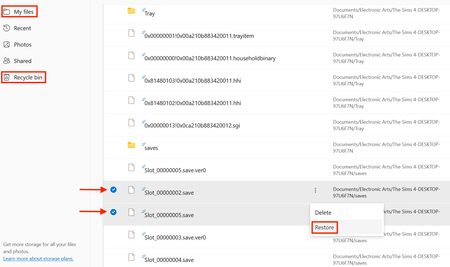

@teodora_66 Please go in-game and find the full path to the folder Sims 4 is currently reading, as described here:
https://sims4.crinrict.com/eng/2018/07/how-to-find-your-user-folder/
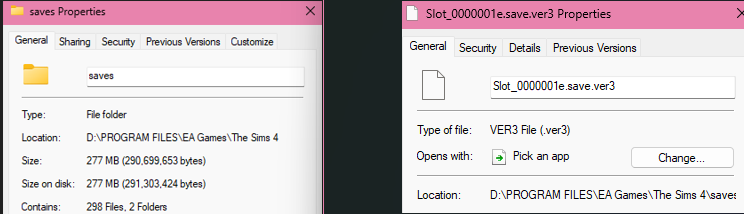
Compare that to the location of your saves. Right-click one save and select Properties > General, then look at the Location. If these two don't match, that's your issue.
If these do match, please post a screenshot of your saves folder, as in, I'd like to see the save names and sizes. Please also post the locations you see for your saves and for the user folder in-game.

hey so i tried those. the saves and save folder have the save location as the game in d drive. the user folder or whatever it is (the one listed at the screenrec and screenshots) is in c drive in a sims folder that i didnt even know about. that sims folder is empty besides the screen recordings' and screenshots' folders. i dont know how to change it or if it would even help.
its very weird that theres a sims folder in c drive because ive always had my game on my d drive.
ive attached the screenshots but it wouldn't let me put more than three so ive grouped them.
@teodora_66 You've put the saves in the folder that contains the game's program files. That's why they're not showing up.
When you run Sims 4 on a given computer, you'll always have two "The Sims 4" folders. One contains the program files, as in, the game itself, what the EA App installs. You can choose the location when installing, as you've chosen your D drive here. These files only change with a patch or if you install a new pack.
The other Sims 4 folder contains user data, for example saves, and that is always in Documents > Electronic Arts regardless of where you've installed the game itself. You can move this folder elsewhere by using a symbolic link, but it should never be combined with the program files. Right now, the game is telling you that folder is still in Documents > Electronic Arts, so that's where your saves need to go.