melodieromeo
10 months agoSeasoned Newcomer
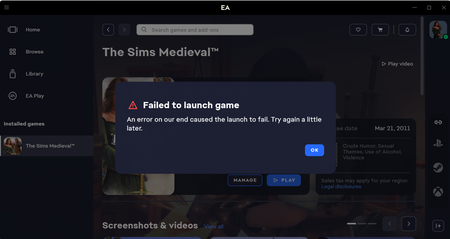
'Failed to Launch Game: An Error on Our End' for Multiple Games. Any Fixes?
I read all the forum messages about this issue from 3 years ago and tried all their solutions. I sent in a ticket to EA Games. I cleared the cache, restarted everything, went into the EA Games folder...
 9 months ago
Hi everyone,
Thanks for sharing your concerns about the "Failed to Launch Game - An Error on Our End..." message in the EA app or when launching games via the EA app, Steam, EGS, or Xbox app. I want to provide clear, step-by-step guidance to help you troubleshoot this issue thoroughly.
Important: Windows Insider Preview Users
If you use Windows Insider Preview builds or updates (especially Preview updates KB5064075 and KB5064071), please note these are beta/preview versions not supported by EA and often cause launch problems. We recommend:
- Disable Windows Insider Preview builds.
- Uninstall Insider updates KB5064075 and KB5064071 (Windows 10/11 uninstall guides linked below).
- Roll back to a stable Windows version if possible.
Detailed Troubleshooting Steps
1. Run and Repair EA Anti-Cheat Installer
- Download the EA Anti-Cheat installer here: https://cdn.eaanticheat.ac.ea.com/EAAntiCheat.Installer.exe
- Run EAAntiCheat.Installer.exe as Administrator (right-click > Run as administrator).
- In the dropdown menu, select your game (e.g., Battlefield 2042, FC25, etc.).
- Click Repair to uninstall and reinstall the anti-cheat service for the game.
- Wait for the process to complete, then restart your PC and try launching the game again.
If repair doesn't fix the issue, proceed to uninstall/reinstall:
- Run the installer again.
- Select your game and choose Uninstall.
- Once uninstalled, reboot your PC and run the installer again.
- Select Install to reinstall a fresh copy of the anti-cheat.
- Restart your PC and launch the game.
2. Close Conflicting Background Apps
- Ensure all background apps that might interfere are closed (we've heard that sometimes MSI Afterburner, Rivatuner, or other third-party overlays or monitoring software may interfere).
- Use Task Manager (Ctrl+Shift+Esc) to close these apps completely.
3. GPU Driver Fixes
- NVIDIA users:
- Restore your driver settings to defaults through the NVIDIA Control Panel.
- Or download and clean-install the latest NVIDIA driver for your GPU from the Nvidia website.
- Choose advanced install > check “Perform a clean installation.”
- Restart your PC and repair EA Anti-Cheat again before launching.
- AMD users:
- Open AMD Adrenalin software and navigate to the "Gaming" tab.
- Select your game and disable all game-specific optimisations.
- Launch the game after the changes.
4. Windows Updates and Caching
- Some Windows updates, especially KB5063878 and KB5064081, have been linked to game launch errors.
- If you have these installed, uninstall them via the official Microsoft guides:
- After uninstalling, restart your PC and run the EA Anti-Cheat repair again.
- For users of the EA app or Steam:
- Perform app recovery in the EA app and repair your game.
- Clear Steam download cache (Settings > Downloads) and verify the integrity of game files.
- Always run both the EA app and Steam as Administrator before launching.
5. Temporarily Disable the EA app Overlay
- Disable the in-game overlay via the EA app settings to see if that works.
‼️When to Come Back to this Thread‼️
If these steps do not resolve your issue, please share the following in this thread:
- Your EA app Error Reporter ID (instructions here: EA app Error Reporter)
- A DxDiag report:
- Press Windows + R, type dxdiag, save all information, and attach the file. See: DxDiag info
- Specify which game(s) are affected.
Thank you! We hope these steps get you back in the game quickly.