Forum Discussion

girlinyellow's avatar
girlinyellow
Rising Novice
21 days ago

The Sims 4 is "not responding" when opening the game.

My Sims 4 starts up as "not responding" and freezes like that for a while. I've already uninstalled the game and cleaned all its folders, reinstalled it with a clean copy, and even then every time I start it, it's still "not responding." Then it unfreezes, but as soon as the plumbob spins, it freezes and the music stops. I didn't play for about two weeks, and when I came back, it's like this.

8 Replies

  • girlinyellow​  Thanks for the dxdiag, which shows that your computer is soemwhat low on free storage.  That shouldn't cause this issue by itself, but sometimes there are complications, for example OneDrive could start pushing your files to cloud storage.

    Point is, try clearing another 10-15 GB or so, for a total of 25-30, and restart your computer, then see whether it helps.  If it doesn't, try playing with your computer offline.  You can sign into the EA App and put it in offline mode, then disable wifi and/or disconnect the ethernet cable before pressing Play.

  • Hello, good morning! Thank you very much for your response to my problem. I already tested the game with more free space, like 80GB and 100GB, and it's the same. I just increased it to 34GB and the game is still the same. It starts up freezing, even without mods or anything. My PC has always run on ultra settings.
    My System Specs (Acer Nitro ANV15-51):
    CPU: Intel Core i5-13420H (13th Gen)
    GPU: NVIDIA GeForce RTX 2050 (Drivers Updated - Jan 2025)
    RAM: 16GB
    Current BIOS: V1.26
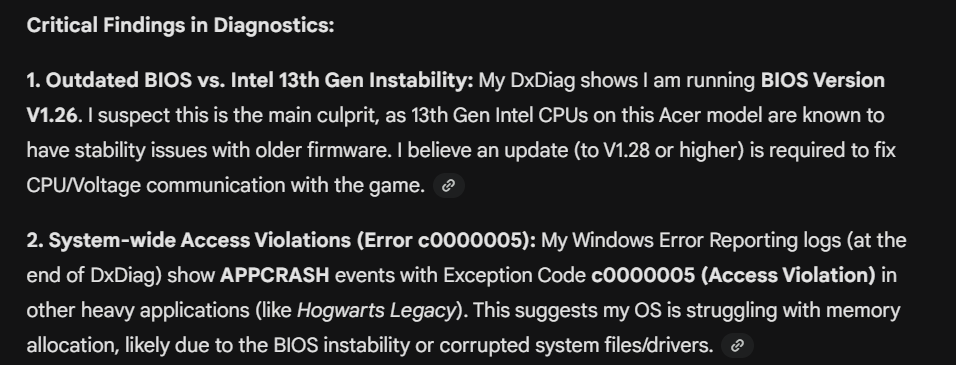
    What Gemini told me was that it could be an outdated BIOS, because I'm on version 1.26, and that there's an error in "Hogwarts Legacy" which could indicate a conflict, such as with the driver. I will be sending another dxdiag now that I've freed up the memory you requested. I will also send what Gemini said about my dxdiag:

  • girlinyellow's avatar
    girlinyellow
    Rising Novice
    20 days ago

    Hello, good morning! Thank you very much for your response to my problem. I already tested the game with more free space, like 80GB and 100GB, and it's the same. I just increased it to 34GB and the game is still the same. It starts up freezing, even without mods or anything. My PC has always run on ultra settings.
    My System Specs (Acer Nitro ANV15-51):
    CPU: Intel Core i5-13420H (13th Gen)
    GPU: NVIDIA GeForce RTX 2050 (Drivers Updated - Jan 2025)
    RAM: 16GB
    Current BIOS: V1.26
    What Gemini told me was that it could be an outdated BIOS, because I'm on version 1.26, and that there's an error in "Hogwarts Legacy" which could indicate a conflict, such as with the driver. I will be sending another dxdiag now that I've freed up the memory you requested. I will also send what Gemini said about my dxdiag:

  • girlinyellow​  Wow, Gemini really has no idea what it's talking about.  First, the issue with instability on 13th- and 14th-gen Intel processors either never happened on your particular CPU, or it was rare enough that I've never seen an example.  The affected models skew towards the high end, e.g. 13700K or 13980HX.

    Second, an access violation simply means that an application tried to access memory in a way that is not supported or permitted.  Windows detects this and closes the program.  Access violations are so generic that they're useless by themselves—you'd need more information, or a real-time debugging setup, to get anything out of them.  Memory allocation is not usually the issue.  A bad driver or outdated BIOS can certainly cause this type of error, with a driver being the more common culprit, but so can almost anything else: game bugs, bad mods or custom content, a conflict with other software, an overactive antivirus, even a hardware issue.  I'm not saying you have a hardware issue, only that the error is truly that generic.

    The access violations your dxdiag lists from Hogwarts Legacy crashes all point to the same component of Windows, one that programs interact with when using other Windows resources.  So it's possible that your system has a corrupt Windows file, although that usually causes more problems than just game crashes.  Still, it's worth running a couple of basic checks of your Windows system files:

    • Click Windows key-X
    • Choose either “PowerShell (Administrator)” or “Windows Terminal (Administrator),” whichever option is offered
    • Inside the window that appears, copy and paste “DISM.exe /Online /Cleanup-image /Restorehealth” without quotes, and enter
    • The system will start validating soon. If it throws an error, please list it here
    • After it reaches 100%, click Windows key-X again
    • Again, choose “PowerShell (Administrator)” or “Windows Terminal (Administrator)”
    • Inside the window, copy and paste “sfc /scannow” without quotes, and enter
    • Post the message you receive here


    Restart your computer, open Windows Settings > Update & Security, and click the box to check for updates.  If any install, restart again afterwards.  This should also clear up the Edge update errors your new dxdiag lists.

    If this doesn't help, did you try playing with your computer offline?  I'd actually try it again after running DISM and sfc even if it didn't work the first time.

  • girlinyellow's avatar
    girlinyellow
    Rising Novice
    15 days ago

    Hello! I formatted my PC and updated my BIOS, since that would be a more definitive way to fix a broken driver or Windows corruption, but my game remains the same (I tested it without mods, vanilla). I really don't understand why the game is like this since I have enough RAM, more than required, and I also have a 2050 which is more than recommended for playing on ultra (as I always have). Here is a new dxdiag from my computer which showed another error with The Sims 4. Even without mods, it takes a long time to load and the screen stays "white" for a while. It's also not running smoothly, whereas before the last two updates it ran fine. Thank you in advance for your support.

  • girlinyellow​  Is the Windows account you're using now tied to your Microsoft account?  The answer is probably yes unless you went out of your way to avoid it.  Point is, please create a new admin Windows account, and make it local, as in, you don't link it to your MS account or any email address.  You can keep declining to provide an email until you're offered some security questions instead.

    Try playing in the new account, and let me know how it goes.

  • girlinyellow​  Okay, then please try playing in a clean boot, while in the new account.  Here's how:

    https://support.microsoft.com/en-us/topic/how-to-perform-a-clean-boot-in-windows-da2f9573-6eec-00ad-2f8a-a97a1807f3dd

    The one service to leave enabled is the EABackgroundService, which the EA App needs in order to run.  Disable the rest as described.

    When you reboot your computer, go through the Task Manager's background processes list shutting down any service that doesn't absolutely need to be running, for example anything from MSI Afterburner to RGB software might still be enabled.  If you accidentally kill a critical process and it doesn't restart on its own, just reboot your computer again.

    Don't open anything other than Sims 4 and the EA App while testing, not even a browser window.

    If this helps, you can selectively reenable services until you find the culprit, then either leave that disabled or (if it belongs to an app you want to keep using) let me know what it is so we can try to fix the underlying issue.

    If the game freezes or crashes in a clean boot, please try again, except with your computer offline.  You can sign into the EA App and put it in offline mode, then disable wifi and/or disconnect the ethernet cable before pressing Play.